 Admin
Intuit View My Paycheck: How to Login and View Pay Stubs
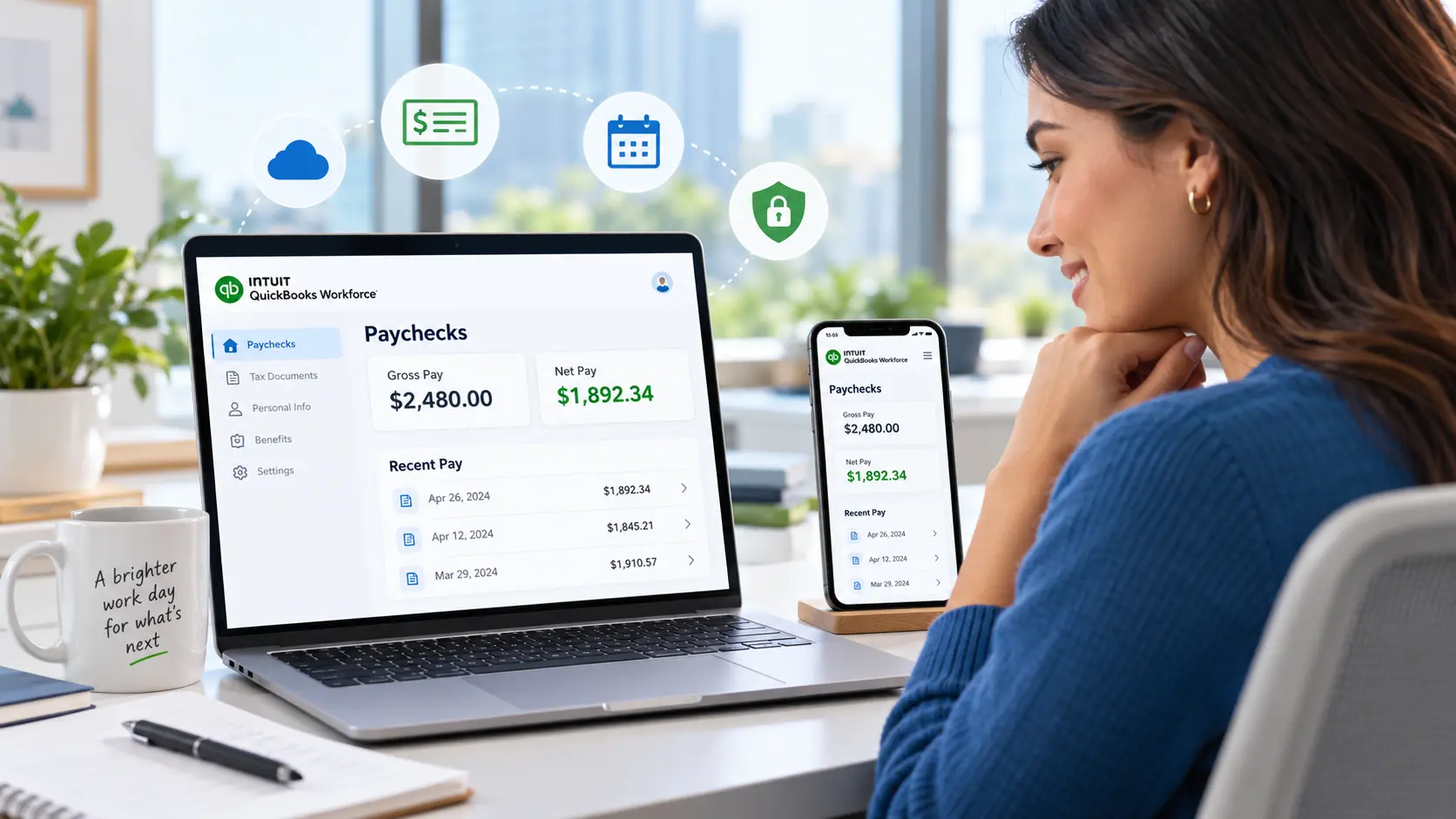
Are you an employee looking for an easy way to check your pay stubs, salary, and tax deductions? Do you want to make sure your employer is paying you the correct amount? Intuit View My Paycheck helps employees access their payroll information online without requesting printed pay stubs.
Intuit originally introduced ViewMyPaycheck to make paycheck information easier to access. Today, employees can use QuickBooks Workforce to view their earnings, deductions, payment history, and available tax forms from anywhere.
In this guide, you’ll learn what Intuit View My Paycheck is, how to sign in to QuickBooks Workforce, view and download pay stubs, and solve common login problems.
What Is Intuit View My Paycheck?
Intuit View My Paycheck is a web-based platform that helps employees easily check their pay stubs, earnings, and other important payroll information online. It helps employees keep track of their earnings without needing to request paper copies from their employers.
The service is mainly used by employees whose employers manage payroll through supported QuickBooks Payroll services. Today, employees can access these features through QuickBooks Workforce, which has replaced the older ViewMyPaycheck experience.
Employees can use the portal to review their payroll details, such as:
- Gross Pay: The total amount earned before any taxes or other deductions are taken out.
- Net Pay: The amount received after deductions.
- Tax Deductions: Federal, state, and other applicable taxes.
- Payment History: Current and previous paychecks.
- W-2 Forms: Annual Tax documents Available.
Employees can view their payroll information anytime from a computer, smartphone, or tablet with internet access.
Is Intuit ViewMyPaycheck the Same as QuickBooks Workforce?
Yes, Intuit ViewMyPaycheck and QuickBooks Workforce serve a similar purpose, but they are not separate services that employees need to use together. ViewMyPaycheck was Intuit’s older online portal for checking pay stubs and payroll information.
Intuit later introduced QuickBooks Workforce as the updated employee portal, offering access to paychecks, earnings, tax deductions, and available W-2 forms.
The main difference is that QuickBooks Workforce provides a more modern experience, including mobile access and additional employee self-service features, depending on the employer’s payroll setup.
If you are searching for Intuit ViewMyPaycheck today, you can visit workforce.intuit.com and sign in using your Intuit account after your employer has provided access.
What Do You Need to Access Intuit View My Paycheck?
Before accessing Intuit View My Paycheck through QuickBooks Workforce, you need a few basic things to sign in and view your payroll information.
- Employer Invitation: Your employer must invite you to QuickBooks Workforce using your email address.
- Intuit Account: You need an Intuit account to log in. You can create one or use an existing account.
- Account Verification: You may need to verify your email address or identity through a security code.
- Internet Connection: A stable internet connection and a computer, smartphone, or tablet are required.
Once these requirements are met, you can sign in to QuickBooks Workforce and access your available pay stubs and payroll details.
How to Sign Up and Log In to Intuit View My Paycheck

To access Intuit View My Paycheck, you need to sign up or log in through QuickBooks Workforce. Follow these simple steps to access your payroll information.
Step 1: Accept Your Employer’s Invitation
Your employer must first invite you to QuickBooks Workforce. Check your email for an invitation from do_not_reply@intuit.com.
- Open the email and click Accept Invite.
- If you cannot find it, check your spam folder.
- If the invitation has expired after 30 days, request a new one from your employer.
Step 2: Create or Sign In to Your Intuit Account
After accepting the invitation, create your Intuit account using your email address and password. If you already have an Intuit account, sign in with your existing credentials.
Step 3: Complete Account Verification
Complete the identity verification steps shown on your screen. Intuit may send a security code to your registered email address or phone number to confirm your identity. Complete any additional information requested during setup.
Step 4: Access Your QuickBooks Workforce Dashboard
Once your account is ready:
- Visit workforce.intuit.com.
- Sign in using your Intuit account.
- Open the Paychecks section to view your available pay stubs and payroll details.
How to View and Download Pay Stubs in QuickBooks Workforce
Once you log in to QuickBooks Workforce, you can easily view your current and previous paychecks. You can also download or print your pay stubs whenever needed. Follow these steps:
View Paychecks on a Computer
- Visit workforce.intuit.com and sign in to your Intuit account.
- Go to the Paychecks section on your dashboard.
- Select the paycheck you want to view.
- Check your gross pay, net pay, taxes, and other deductions.
View Paychecks on the Workforce Mobile App
- Download the QuickBooks Workforce app from the Google Play Store or Apple App Store.
- Open the app and sign in with your Intuit account.
- Tap Pay to access your paycheck details.
- Select a pay period to view your earnings and deductions.
Download or Print Your Pay Stub
- Sign in to QuickBooks Workforce on your computer.
- Open Paychecks and select the required paycheck.
- Click Download to save your pay stub as a PDF.
- Open the downloaded file and select Print if you need a paper copy.
Note: You can only view paychecks that your employer has made available through QuickBooks Workforce.
What Information Can You See on Your Paycheck?
When you open your pay stub through Intuit View My Paycheck, you can see a breakdown of your earnings, taxes, and deductions. This helps you understand how your salary is calculated and how much money you actually receive.
Here are the key details you can check:
- Gross Pay: Your total earnings before any taxes or deductions.
- Net Pay: The amount you take home after taxes and other deductions.
- Taxes: Federal, state, and local taxes withheld from your earnings, if applicable.
- Deductions: Money deducted for health insurance, retirement contributions, and other benefits.
- Pay Period: The dates for which you are being paid.
- Year-to-Date (YTD) Earnings: Your total earnings since the beginning of the calendar year.
Checking these details regularly helps you spot any mistakes in your paycheck and monitor your earnings.
How Employers Can Set Up View My Paycheck in QuickBooks
Employers using QuickBooks Payroll can give employees online access to their pay stubs through QuickBooks Workforce. The setup process depends on whether you use QuickBooks Online or QuickBooks Desktop.
How to Set Up Employee Access in QuickBooks Online
- Sign in to QuickBooks Online with an administrator account.
- Go to Payroll > Employees.
- Select the employee you want to invite.
- Find the QuickBooks Workforce access or invitation option.
- Enter the employee’s email address and send the invitation.
Enable QuickBooks Workforce in QuickBooks Desktop
- Open QuickBooks Desktop and update your payroll software.
- Go to Employees > Manage Payroll Cloud Services.
- Turn on QuickBooks Workforce, if available.
- Follow the on-screen instructions to complete the setup.
Businesses that need remote access to their desktop accounting software can explore QuickBooks Hosting from QBClouds.
Send Payroll Information and Employee Invitations
After completing the setup:
- Create and process employee paychecks as usual.
- Upload payroll information to Intuit if using QuickBooks Desktop.
- Send Workforce invitations to employees who need access.
- Ask employees to accept their invitations and sign in at workforce.intuit.com.
Note: Available setup options may vary by QuickBooks version and payroll subscription.
How to Fix Common Intuit View My Paycheck Problems
Sometimes, employees may face problems while accessing Intuit View My Paycheck through QuickBooks Workforce. These issues may include login errors, missing paychecks, or invitation problems. Here are some simple ways to fix them.
Cannot Log In or Forgot Your Password
If you cannot sign in to your account:
- Visit workforce.intuit.com.
- Click I forgot my user ID or password.
- Follow the instructions to recover your account.
- Try signing in again using your updated credentials.
Did Not Receive a Workforce Invitation
If your employer sent an invitation but you cannot find it:
- Check your spam or junk email folder.
- Confirm that your employer entered the correct email address.
- Ask your employer to resend the invitation.
Paychecks Are Missing or Not Updated
If your latest paycheck is not showing:
- Refresh the Workforce dashboard.
- Check whether you selected the correct pay period.
- Contact your employer to confirm that payroll information has been submitted.
Cannot Access Previous Pay Stubs
If you cannot find older paychecks:
- Open the Paychecks section.
- Check the available date ranges or pay periods.
- Ask your employer for copies if older records are unavailable.
Note: Your employer manages payroll records, so contact them if the issue continues.
How to View W-2 Forms in QuickBooks Workforce
QuickBooks Workforce allows employees to view and download their available W-2 forms online. These forms show your annual earnings and taxes withheld, which you may need when filing your tax return.
Follow these steps to access your W-2:
- Visit workforce.intuit.com and sign in.
- Go to the W-2s or Documents section, depending on your account.
- Select the tax year you want to view.
- Download or print your W-2 form.
If your W-2 is missing, contact your employer to confirm whether it has been made available.
Is Intuit View My Paycheck Free and Secure?
Employees can use Intuit View My Paycheck at no extra cost if their employer has given them access through QuickBooks Workforce. They can check, download, and print their available pay stubs without paying a separate fee.
QuickBooks Workforce includes security features to help keep personal and payroll details protected. For better account safety, create a strong password, turn on additional verification when available, and avoid sharing your login credentials with anyone.
Always sign in through the official website, and avoid suspicious emails or links asking for your personal or payroll information.
Final Thoughts
Intuit View My Paycheck makes it easier for employees to check their earnings, download pay stubs, and access payroll information through QuickBooks Workforce. With an Intuit account and an invitation from your employer, you can manage your paycheck details online without relying on paper copies.
For employers using QuickBooks Desktop, keeping payroll records organized and accessible is equally important. Businesses looking for remote access to their accounting software can explore QuickBooks Hosting plans from QBClouds to manage their QuickBooks Desktop operations more conveniently.
Frequently Asked Questions
How do I view my paycheck on Intuit?
To view your paycheck, visit workforce.intuit.com and sign in with your Intuit account. Open the Paychecks section to check your earnings, deductions, and payment history. Your employer must have enabled access.
Can I access Intuit View My Paycheck without an invitation?
No, your employer generally needs to invite you to QuickBooks Workforce before you can access your payroll information. If you haven’t received an invitation, contact your employer or payroll administrator and request access.
How do I download my pay stub from QuickBooks Workforce?
Sign in to QuickBooks Workforce, open the Paychecks section, and select the paycheck you need. Click the available download option to save your pay stub as a PDF. You can also print it for your records.
Why is my paycheck not showing in QuickBooks Workforce?
Your paycheck may be missing because your employer hasn’t processed or uploaded the latest payroll information. Check the selected pay period and refresh your dashboard. If it still doesn’t appear, contact your employer.
Can I view old paychecks after leaving my job?
You may still access previous pay stubs through QuickBooks Workforce after leaving your job, depending on your account access and available payroll records. If you cannot find them, contact your former employer for copies