 Admin
What Is WeTransfer? How to Use, Send & Download Files
Have you ever tried sending large photos, videos, or documents through email but received a message saying the file is too large? Most email services have attachment size limits, making it difficult to share large files with friends, clients, or colleagues.
WeTransfer makes file sharing easier by allowing users to upload large files and send them through email or a shareable download link. Recipients can then download the files without dealing with large email attachments.
In this guide, you’ll learn what WeTransfer is, how it works, how to create an account, send and download files, and use its features safely.
What Is WeTransfer?
WeTransfer is an online file-sharing service that allows users to send large files, such as photos, videos, documents, and presentations, over the internet. Instead of attaching large files directly to an email, users can upload them to WeTransfer and share them through email or a download link.
The main purpose of WeTransfer is to make large file sharing simple and convenient. It is especially useful when files are too large to send through regular email services.
WeTransfer can be used by students, freelancers, photographers, designers, businesses, and anyone who needs to share files online. It offers both free and paid plans, with different transfer limits and features.
Recipients can download shared files without creating an account, making the process easier.
How Does WeTransfer Work?
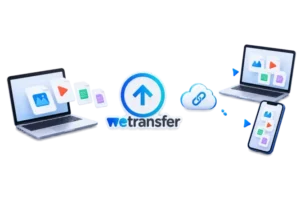
WeTransfer lets you upload files to its cloud-based platform and generate a download link to share with others. This makes it easy to send large documents, photos, and videos without worrying about email attachment size limits.
Here is how the process works:
- Upload Your Files: Visit the WeTransfer website and select the photos, videos, documents, or folders you want to share.
- Choose a Sharing Method: Enter the recipient’s email address or generate a download link that you can share yourself.
- Send Your Transfer: Complete any required verification and send the files or share the link.
- Download the Files: Recipients open the link and download the shared files to their devices.
WeTransfer stores uploaded files temporarily. Once the transfer expires, recipients can no longer download them, so they should save their files before the expiration date.
Is WeTransfer Free to Use?
Yes, WeTransfer is free to use for individuals who occasionally need to share large files. Its free plan allows users to send photos, videos, documents, and other files without paying a subscription fee.
With a free WeTransfer account, you can:
- Send up to 3 GB of files within a rolling 30-day period.
- Make up to 10 transfers during that period.
- Share files through email or download links.
- Keep shared files available for up to 3 days.
However, the free plan has limits on transfer size, frequency, and file availability. If you regularly send larger files, need longer download periods, or use WeTransfer for business, a paid plan may be more suitable.
How to Create a WeTransfer Account
Creating a WeTransfer account is simple and takes only a few minutes. A free account lets you share files online and manage your transfers within the available plan limits. Follow these steps to complete the WeTransfer sign-up process.
Step 1: Visit the Official WeTransfer Website
Open your preferred web browser and visit wetransfer.com. Make sure you are using the official website to keep your personal information safe.
Step 2: Click Sign Up
Find the Sign up option on the homepage and click it. You will be directed to the account registration page, where you can choose how to create your account.
Step 3: Enter Your Account Details
You can register using your email address or an available third-party sign-in option.
- Enter your email address.
- Create a strong password if registering through email.
- Choose the available sign-up option to continue.
- Review and accept the required terms.
Step 4: Verify Your Email and Complete Registration
If WeTransfer asks for email verification:
- Open your email inbox.
- Find the verification message from WeTransfer.
- Follow the provided instructions to confirm your email.
Once registration is complete, you can sign in and start sharing files using your account.
How to Log In to WeTransfer
Once you have created your account, you can easily access WeTransfer to send files, view transfers, and manage your account. Follow these steps to complete the WeTransfer login process.
Sign In With Your Registered Account
- Visit the official website at wetransfer.com.
- Click the Log in button.
- Enter your registered email address and password.
- Select Log in to access your account.
If you registered using Google, Apple, or another supported service, choose the same sign-in method.
How to Reset a Forgotten WeTransfer Password
If you cannot remember your password:
- Open the WeTransfer login page.
- Click Forgot password?
- Enter your registered email address.
- Check your inbox for the password reset email.
- Follow the instructions to create a new password.
Note: If you registered through Google or Apple, use that service to sign in instead.
How to Send Files Using WeTransfer
Sending large files through WeTransfer is simple. You can share photos, videos, documents, and folders without attaching them directly to an email. Follow these steps to send files using WeTransfer.
Step 1: Open WeTransfer and Select Your Files
- Visit wetransfer.com using your web browser.
- Sign in to your account if required.
- Click Upload files or select the option to upload a folder.
- Choose the files you want to share from your device.
Make sure your files are within your plan’s transfer limits.
Step 2: Choose Email Transfer or Get a Link
WeTransfer provides two sharing methods:
- Email Transfer: Sends a download link directly to the recipient’s email address.
- Link Transfer: Creates a shareable link that you can send through email, chat, or messaging apps.
Step 3: Add Recipient Details and a Message
For email transfers, provide the recipient’s email address along with your own, if required. You can also include a title and a brief message describing the files you’re sharing.
For link transfers, recipient email details are not required.
Step 4: Complete Email Verification if Required
WeTransfer may ask you to verify your email address before sending files. If prompted, check your inbox for a verification code and enter it to continue.
Step 5: Send Your Files or Share the Download Link
Click Transfer to send your files to the recipient’s email address. If you prefer link sharing, copy the generated download link and send it through email or a messaging app. Wait until the file upload is complete before leaving the website.
The recipient can then open the link and save the files to their device while the transfer is still available.
How to Receive and Download Files from WeTransfer
Receiving files through WeTransfer is easy. When someone shares photos, videos, or documents with you, you can download them using an email invitation or a shared link. You usually don’t need a WeTransfer account to receive files.
Download Files Received Through Email
- Open the email notification sent by WeTransfer.
- Click the Get your files or download link in the email.
- You will be redirected to the WeTransfer download page.
- Click Download to save the files to your device.
Download Files Using a WeTransfer Link
- Open the download link shared by the sender.
- Review the file details on the WeTransfer page.
- Click Download to start downloading.
- Find the downloaded files in your device’s Downloads folder.
Open and Extract Downloaded ZIP Files
When you download multiple files, WeTransfer may combine them into a ZIP folder.
- Locate the downloaded ZIP file.
- Right-click and select Extract All on Windows, or double-click it on Mac.
- Choose a folder to save the extracted files.
Note: Download your files before the transfer link expires
How to Use WeTransfer on Android and iPhone
WeTransfer allows Android and iPhone users to easily share and download photos, videos, documents, and other files on their phones. You can use the WeTransfer mobile app or visit its website through your phone’s browser.
How to Send Files From Your Phone
Follow these steps to share files using your mobile device:
- Download the WeTransfer app from the Google Play Store or Apple App Store.
- Launch the app and log in using your WeTransfer account details.
- Select the option to start a new file transfer.
- Choose the photos, videos, or documents you wish to send from your phone.
- Select email sharing or generate a download link.
- Finish uploading your files and send the link to the intended recipient.
How to Download WeTransfer Files on Mobile
- Open the WeTransfer link received through email or messaging.
- Tap Download to save the shared files.
- Open your phone’s Files or Downloads folder to find them.
Note: Download files before the transfer link expires.
What Are the Main Features of WeTransfer?
WeTransfer offers several useful features that make sharing large files simple and convenient. Whether you need to send personal photos or business documents, these features help you share and manage files online.
Here are the main features of WeTransfer:
- Large File Sharing: Send photos, videos, presentations, and documents without attaching them directly to emails. Transfer limits depend on your plan.
- Shareable Download Links: Generate a link and share it through email, messaging apps, or other communication platforms.
- Email File Transfers: Send files directly to recipients through email notifications containing download links.
- Download Tracking: Check transfer activity and download status where tracking is supported.
- File Previews: Preview supported file types before downloading them, when this feature is available.
- Transfer Management: View sent transfers, check expiration dates, and manage available transfers from your account.
- Password Protection: Add passwords to shared transfers on supported paid plans to prevent unauthorized access.
- Custom Expiration Dates: Paid plans offer more control over how long shared files remain available.
These features make WeTransfer file sharing useful for individuals, freelancers, and businesses that regularly exchange large files.
WeTransfer Free vs Paid Plans: Features and Limits
WeTransfer offers free and paid plans for individuals, professionals, and businesses. Each plan has different file transfer limits, storage options, and additional features.
WeTransfer Free Plan
The WeTransfer Free plan is suitable for occasional file sharing. You can send up to 10 transfers or 3 GB of data within a rolling 30-day period. Shared files remain available for up to three days.
WeTransfer Starter, Ultimate and Teams Plans
Paid plans provide higher transfer limits, more flexibility, and additional tools for professional file sharing.
| Plan | Transfer Limit | Best For |
| Free | 10 transfers or 3 GB per 30 days | Occasional users |
| Starter | 10 transfers or 300 GB per 30 days | Large file sharing |
| Ultimate | Unlimited transfers | Freelancers and professionals |
| Teams | Unlimited transfers | Business teams |
| Enterprise | Custom business solution | Large organizations |
Ultimate supports custom expiration dates, access controls, and branded transfer pages. Teams adds shared workspaces and administration tools.
Which WeTransfer Plan Should You Choose?
Choose Free for occasional sharing, Starter for larger files, or Ultimate for regular professional use. Teams and Enterprise are better suited to organizations needing shared management and advanced controls.
How to View and Manage Transfers on WeTransfer
WeTransfer allows users to check their shared files, monitor downloads, and manage active transfers from one place. You can access these features by signing in to your account.
H3: Check Sent and Received Transfers
- Visit wetransfer.com and log in.
- Open the Transfers section.
- Select Sent to view files you have shared.
- Select Received to check available files sent to you.
Click any transfer to view its details, including file names, size, and expiration date.
Track Downloads and Transfer Expiration
WeTransfer helps you monitor transfer activity.
- Check how many times your shared files have been downloaded.
- View recipient download information for email transfers.
- Check expiration dates to know when files will become unavailable.
For link transfers, you generally cannot identify individual downloaders.
Delete or Manage Shared Files
To manage your transfers:
- Open the Transfers section.
- Select a transfer you previously sent.
- Copy its link, review its details, or delete it.
- Adjust expiration settings if your plan supports this feature.
Note: Deleting a transfer removes access to its shared files.
Is WeTransfer Safe for Sharing Files?
Yes, WeTransfer is generally safe for sharing files online. It uses encryption and security measures to protect uploaded content. However, keeping your files secure also depends on how you share links and manage account access.
H3: How WeTransfer Protects Files
WeTransfer uses two main security methods:
- TLS Encryption: Protects files while they are being uploaded or downloaded.
- AES-256 Encryption: Helps protect files stored on WeTransfer’s servers.
Files are accessed through unique transfer links, which should be shared carefully.
How to Share Files More Securely
Follow these simple practices to protect your files:
- Use password protection when sharing sensitive documents.
- Share download links only with trusted recipients.
- Use strong passwords for your WeTransfer account.
- Avoid opening suspicious emails or unknown transfer links.
- Delete shared transfers when they are no longer needed.
Is WeTransfer Suitable for Confidential Business Documents?
WeTransfer can be used to share business documents, but sensitive financial records require extra care. Businesses should check their security policies before transferring confidential information.
For companies managing QuickBooks Desktop data, QuickBooks Hosting provides a separate solution for secure remote access to accounting applications.
What Are the Benefits of Using WeTransfer?
WeTransfer makes sharing large files easier for individuals and businesses. It offers a simple way to send documents, photos, videos, and other files without worrying about regular email attachment limits.
Here are the main benefits of using WeTransfer:
- Easy Large File Sharing: Share large videos, presentations, and documents without reducing their size to meet email attachment limits.
- Simple File Transfers: Upload your files, choose a sharing method, and send them in a few steps without technical knowledge.
- Easy Recipient Access: Recipients can download shared files through a link without creating a WeTransfer account.
- Temporary File Sharing: Transfers expire after a set period, helping prevent files from remaining available indefinitely.
- Access Across Devices: Send and receive files using computers, smartphones, or tablets with internet access.
- Flexible Sharing Options: Choose between email transfers and shareable links based on your needs.
These features make WeTransfer a practical choice for sharing files, whether for personal use or business communication.
How Can Businesses Use WeTransfer?
WeTransfer helps businesses share large files with clients, employees, and team members without dealing with email attachment limits. It is especially useful for companies that regularly exchange project documents, reports, and creative content.
Here are some common ways businesses can use WeTransfer:
- Design Files: Graphic designers and agencies can share high-resolution images, logos, and design projects with clients.
- Business Reports: Teams can send presentations, reports, and large PDF documents to colleagues or business partners.
- Marketing Content: Marketing professionals can share promotional videos, advertising materials, and campaign files for review.
- Project Documents: Employees can exchange project files, proposals, and other documents with remote team members.
- Client Communication: Businesses can deliver large files to clients through email or secure sharing links.
Security Tip: Avoid sharing confidential financial records through public links. Use password protection when available, verify recipients, and follow your company’s data security policies.
What Are the Limitations of WeTransfer?
Although WeTransfer is a convenient tool for sharing large files, it has certain limitations that users should understand before sending important documents.
Here are the main drawbacks of WeTransfer:
- Transfer Expiration: Shared files remain available for a limited time. Once a transfer expires, recipients may no longer be able to download the files.
- Free Plan Restrictions: Free users face limits on file size, total transfers, and download availability. Frequent users may need a paid plan.
- Internet Dependency: Uploading and downloading files requires an internet connection. Slow connections can delay large transfers.
- Not Designed for Long-Term Storage: WeTransfer focuses on temporary file sharing rather than permanent cloud storage or regular backups.
- Limited Access Control: Anyone with an unprotected download link may be able to access the shared files.
Knowing these drawbacks can help you determine if WeTransfer is the right choice for sharing your files.
How to Fix Common WeTransfer Problems
Sometimes, WeTransfer users may face problems while uploading, downloading, or accessing shared files. Most issues can be resolved with a few simple steps.
WeTransfer Link Has Expired
If your download link has expired, the files may no longer be available.
- Ask the sender to upload the files again and share a new link.
- Download important files before their expiration date.
Files Are Not Uploading or Downloading
If a file transfer fails or gets stuck:
- Check your internet connection.
- Refresh the page and try again.
- Update your browser or try another browser.
- Check whether browser extensions or security software are blocking the transfer.
WeTransfer Verification Email Not Received
If you haven’t received a verification email:
- Check your spam, junk, and promotions folders.
- Confirm that you entered the correct email address.
- Request another verification email if available.
- Add noreply@wetransfer.com to your trusted contacts.
Cannot Log In to Your WeTransfer Account
If you cannot access your account:
- Check your email address and password.
- Use Forgot password? to reset your password.
- If you registered through Google or Apple, use the same sign-in method.
Downloaded ZIP File Is Not Opening
If your downloaded ZIP file won’t open:
- Make sure the download finished completely.
- Download the file again if necessary.
- Try extracting it with another ZIP extraction tool.
What Are the Best Alternatives to WeTransfer?
While WeTransfer makes sharing large files easy, other file-sharing services provide useful options for cloud storage, teamwork, and managing documents. Here are five WeTransfer alternatives you can consider based on your needs.
Google Drive
Google Drive is ideal for storing, sharing, and collaborating on documents. It allows users to manage file permissions, organize folders, and work together on files in real time.
Dropbox
Dropbox is suitable for individuals and businesses that need cloud storage, automatic file syncing, secure sharing links, and easy access across multiple devices.
Microsoft OneDrive
Microsoft OneDrive works well for businesses using Microsoft 365. It allows users to store files, share documents, and collaborate through Word, Excel, and other Microsoft applications.
Smash
Smash is useful for sending very large files. Its free plan has no file size limit, although transfers larger than 2 GB may take longer to process.
Hightail
Hightail is designed for creative teams that need file sharing, project collaboration, feedback collection, and approval tracking.
Final Thoughts
WeTransfer is a convenient file-sharing tool for individuals, freelancers, and businesses that need to send large photos, videos, and documents. Its simple interface, email transfers, and shareable links make sending and receiving files easy.
Before using WeTransfer, check your plan’s transfer limits, file expiration dates, and available security features. For sensitive documents, use password protection when available and share download links only with trusted recipients to keep your files secure.
Frequently Asked Questions
Can I use WeTransfer without creating an account?
You need a WeTransfer account to send files. However, you can create a free account during your first transfer by verifying your email address. Recipients do not need an account to download shared files.
How do I log in to my WeTransfer account?
Visit wetransfer.com, click Log in, and enter your registered email address. Complete the password or email verification process. You can also sign in using Google, Apple, or Slack if your account supports it.
How much data can I send using WeTransfer for free?
The free plan allows up to 10 transfers or 3 GB of total data within a rolling 30-day period. If you reach your limit, you must wait for your allowance to become available again or upgrade.
How long does a WeTransfer download link last?
Free and Starter users can keep transfers available for up to three days. Paid plans may offer longer or customizable expiration periods.
Can I download files from WeTransfer without an account?
Yes, you can download files without registering. Simply open the transfer link, accept any required terms, and select Download to save the files.
Can I recover an expired WeTransfer transfer?
Recovery is possible only for eligible transfers on supported paid plans when the recovery feature was enabled. Otherwise, ask the sender to upload the files again.
Does WeTransfer work on Android and iPhone?
Yes, WeTransfer works on Android and iPhone. You can use its mobile app or website to upload, send, receive, and download files.
Can I send multiple files or folders using WeTransfer?
Yes, WeTransfer supports multiple files and folders in one transfer. Select the required files or upload a folder, check your plan limits, and share them through email or a download link.