
 Admin
Is QuickBooks Online Down? How to Check Status and Fix Common Issues
Is QuickBooks Online down, or is something preventing it from working on your device? Login errors, endless loading screens, payroll problems, and unexpected service interruptions can stop you from accessing your accounting data when you need it most.
Before changing your settings, check the official Intuit QuickBooks status page to see whether an outage has been reported. If services are running normally, the issue may involve your internet connection, browser, or account.
This guide explains how to check QuickBooks Online status, recognize common outage signs, and follow simple troubleshooting steps to get back to managing invoices, payroll, and everyday accounting tasks.
Is QuickBooks Online Down Right Now?
Wondering, “Is QuickBooks Online down right now?” The fastest way to find out is to check Intuit’s official status page. It shows reported service interruptions and helps you determine whether the issue is widespread or related to your device.
Check the Official QuickBooks Online Status
Visit the Official QuickBooks Status Page and locate QuickBooks Online. Check the status for your region, including the United States, Canada, EMEA, APAC, or LATAM.
You can also review recent incidents to see whether Intuit has reported any outages or service disruptions.
What Do QuickBooks Status Indicators Mean?
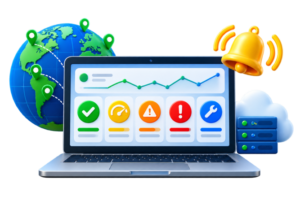
The status page displays five indicators:
- Operational: QuickBooks services are working normally.
- Degraded Performance: Users may experience slow loading or performance issues.
- Partial Outage: Certain features or users are affected.
- Major Outage: Significant service interruptions are affecting users.
- Maintenance: Scheduled updates or maintenance may temporarily affect availability.
Always check your region and affected service before troubleshooting your device.
4 Reliable Ways to Check QuickBooks Online Status
If QuickBooks Online stops working, checking its service status can help you identify the problem before troubleshooting. Here are four reliable ways to check for outages, maintenance, and service disruptions.
1. Visit the Official Intuit QuickBooks Status Page
Intuit’s official status page is the most reliable source for confirmed service outages.
Follow these steps:
- Visit the Official QuickBooks Status Page.
- Find QuickBooks Online in the service list.
- Select your region, such as the United States or Canada.
- Check for reported outages, maintenance, or performance issues.
- Read available incident updates for additional details.
If Intuit confirms an outage, monitor the updates instead of making unnecessary changes to your device.
2. Review QuickBooks Outage and Incident History
QuickBooks maintains a history of previous service interruptions and scheduled maintenance.
To review past incidents:
- Open the official status page.
- Select Incident History.
- Review recent outage reports and maintenance records.
- Check incident dates, affected services, and resolution details.
Remember that previously reported incidents do not necessarily indicate an active QuickBooks Online outage.
3. Check Downdetector and Other Monitoring Websites
Third-party monitoring websites can help identify possible service disruptions based on user reports.
Two useful platforms include:
- Downdetector: Displays user-submitted outage reports, complaint trends, and reported problem locations.
- StatusGator: Monitors QuickBooks availability and provides incident history and service status information.
However, increased user complaints do not always confirm a widespread outage. Compare these reports with official Intuit updates.
4. Subscribe to QuickBooks Outage Notifications
You can receive notifications about QuickBooks service interruptions without repeatedly checking its status.
Select Subscribe to Updates on Intuit’s status page and choose an available notification method.
These alerts can inform you about reported outages, scheduled maintenance, and service restoration, helping you plan accounting activities during unexpected disruptions.
Why Is QuickBooks Online Not Working? 6 Common Causes
QuickBooks Online may stop working due to server outages, internet problems, or browser-related errors. Understanding these common causes can help you identify the issue and find the right solution.
1. QuickBooks Server Outages
Technical problems with Intuit’s servers can temporarily interrupt QuickBooks Online services. You might experience login failures, blank dashboards, or unexpected error messages. These issues may affect multiple users simultaneously.
2. Scheduled Maintenance and Updates
Intuit occasionally performs system maintenance and software updates to improve performance and security. During certain updates, some QuickBooks features may become temporarily unavailable, causing loading errors or limited access.
3. Slow or Unstable Internet Connection
QuickBooks Online requires a stable internet connection. Weak Wi-Fi signals, network interruptions, or slow internet speeds can cause delayed loading, failed uploads, and frequent disconnections, even when Intuit’s servers are operational.
4. Browser Cache, Cookies, or Extensions
Outdated browser cache, corrupted cookies, or conflicting extensions can interfere with QuickBooks Online. Common symptoms include endless loading screens, missing buttons, blank pages, and repeated login redirects.
5. QuickBooks Login or Authentication Issues
Incorrect passwords, expired sessions, or delayed verification codes may prevent account access. Users might encounter sign-in errors or repeated identity verification requests when trying to open QuickBooks Online.
6. Problems With Specific QuickBooks Services
Sometimes, individual services such as QuickBooks Payroll, Payments, or bank connections experience disruptions while other accounting features continue working normally.
For example, payroll processing might fail even when invoices and financial reports remain accessible.
These problems can have similar symptoms, so checking the service status helps narrow down the cause before troubleshooting.
Is QuickBooks Down for Everyone or Just You?
When QuickBooks Online stops working, the problem may affect everyone or only your device. Identifying the difference helps you avoid unnecessary troubleshooting and find the right solution faster.
Signs of a Widespread QuickBooks Outage
A widespread QuickBooks Online outage may be occurring if:
- Intuit’s official status page reports an active incident.
- Multiple users experience the same login or loading errors.
- QuickBooks fails across different devices and internet connections.
- Several accounting features become unavailable simultaneously.
If these signs appear, check official incident updates before changing your browser settings.
Signs the Problem Is With Your Device or Network
The issue is likely local if QuickBooks works for other users but not for you.
Common signs include:
- QuickBooks works in another browser or device.
- Other websites also load slowly.
- Switching internet connections resolves the issue.
- Only one computer displays repeated errors.
Use this comparison table to identify the possible cause.
| Problem | Possible Cause | Recommended Action |
| Multiple users cannot log in | Server outage | Check Intuit status |
| One browser fails | Cache or extension issue | Clear cache or switch browsers |
| All websites load slowly | Internet problem | Restart router |
| QuickBooks works on another device | Device-specific issue | Check browser settings |
| Payroll fails, but accounting works | Service-specific disruption | Check Payroll status |
These checks help determine whether to wait for Intuit or troubleshoot locally.
How to Fix QuickBooks Online Not Working: Step-by-Step

If QuickBooks Online is not loading, follow these troubleshooting steps in order. Start with simple checks before changing your browser settings or contacting support.
Step 1: Check the QuickBooks Server Status
Check Intuit’s official QuickBooks status page for an active outage affecting your region or service. If Intuit reports an incident, review its updates and wait for service restoration. Browser changes will not resolve a server-side outage.
Step 2: Test Your Internet Connection
Open another website to confirm your internet is working. If pages load slowly, reconnect to Wi-Fi or restart your router. Try a different network, such as a mobile hotspot, to see whether the issue is connection-related.
Step 3: Refresh QuickBooks and Restart Your Browser
Refresh the QuickBooks Online page once. If it still fails, close your browser completely, reopen it, and sign in again. This can fix temporary loading errors or sessions that are no longer responding. Avoid repeatedly submitting transactions while a page is frozen.
Step 4: Clear Browser Cache and Cookies
Old browser data can prevent QuickBooks pages from loading properly. In Chrome, press Ctrl + Shift + Delete (Command + Shift + Delete on Mac), select cached images and files, and clear them. Restart your browser and try again.
If the problem continues, remove Intuit-specific cookies through your browser’s site-data settings rather than deleting cookies for every website. You may need to sign in again.
Step 5: Try an Incognito Window or Another Browser
Open a private or incognito window and sign in to QuickBooks. If it works there, saved browser data or extensions may be interfering. You can also test another supported browser. Use private browsing only for troubleshooting; Intuit recommends regular browsing for better everyday performance.
Step 6: Update Your Browser and Check Extensions
Make sure Chrome, Edge, Firefox, or Safari is up to date. Temporarily disable suspicious extensions, especially ad blockers or privacy tools, and test QuickBooks again. Re-enable extensions one at a time to identify any conflict.
Step 7: Contact QuickBooks Support if the Issue Continues
If nothing works and no outage is reported, contact Intuit through the Help section in QuickBooks or its official support site. Share the error message, a screenshot, your browser version, and the troubleshooting steps you already tried. Never share your password or verification codes.
Common QuickBooks Online Problems and Their Solutions
QuickBooks Online problems can appear in different ways, including login failures, loading errors, and payroll interruptions. Identifying the specific issue helps you choose the right solution without wasting time on unnecessary troubleshooting.
QuickBooks Online Login Not Working
If you cannot sign in, check your email address, password, and verification code. Make sure your phone can receive authentication messages.
If you forgot your password or cannot access your verification method, use Intuit’s account recovery options.
If login works in another browser, clear the Intuit cookies in your regular browser and try again.
QuickBooks Online Stuck on Loading Screen
An endless spinning wheel, blank screen, or unresponsive dashboard may indicate outdated browser data or temporary service problems.
Try refreshing the page, opening QuickBooks in a private window, or disabling conflicting extensions.
If the loading issue continues across multiple devices, check for a reported QuickBooks Online outage.
QuickBooks Payroll Not Working
Payroll problems may involve service interruptions, connection errors, or account-related issues.
Check QuickBooks Payroll status and review any error messages before troubleshooting.
If payroll submission fails, verify whether the transaction was already processed before trying again. Contact Intuit Payroll Support if a payment deadline is approaching.
QuickBooks Online Mobile App Not Working
If the QuickBooks app crashes or stops responding on Android or iPhone:
- Switch between Wi-Fi and cellular data.
- Close and reopen the app.
- Install available app updates.
- Restart your smartphone.
- Reinstall the app if necessary.
If the problem continues, try accessing QuickBooks through a supported web browser to determine whether the issue is app-specific.
What Should You Do During a Confirmed QuickBooks Online Outage?

When Intuit confirms a QuickBooks Online outage, avoid making unnecessary changes to your account. Instead, focus on protecting transaction accuracy, managing urgent accounting tasks, and keeping your team informed.
Avoid Repeating Payments or Transactions
If an invoice, payment, or payroll submission fails to show confirmation, do not immediately submit it again. The transaction may have processed successfully despite the error.
Record the transaction details and verify its status once QuickBooks Online becomes available. This helps prevent duplicate payments, invoices, or accounting entries.
Keep Track of Important Accounting Activities
Maintain a secure temporary record of essential accounting tasks, including:
- Pending invoices and customer payments.
- Upcoming payroll deadlines.
- Bills and scheduled transactions.
- Important financial activities requiring follow-up.
Once service is restored, update your accounting records and check for duplicate entries.
Inform Your Team and Monitor Service Updates
Notify your accounting staff about the outage and identify tasks that require immediate attention. Inform affected clients if payments or invoices may be delayed.
Monitor Intuit’s official status updates for restoration progress. If payroll or payment deadlines are approaching, contact the relevant support team for guidance.
How Long Does a QuickBooks Online Outage Last?
QuickBooks Online outages do not have a fixed recovery time. Minor technical issues may be resolved quickly, while major service disruptions can take longer to investigate and repair. The duration depends on the cause, severity, and affected systems.
Past incidents have included temporary login failures, payroll interruptions, and problems accessing certain features. However, previous outages cannot predict how long a new disruption will last.
For accurate information, monitor Intuit’s official incident updates. Check which services are affected, review restoration progress, and confirm that the issue is resolved before resuming important accounting transactions.
How to Reduce the Impact of Future QuickBooks Outages
Although you cannot prevent Intuit’s service outages, preparing your accounting workflow can help minimize business disruptions and protect important financial information.
Enable Outage Notifications
Subscribe to notifications through Intuit’s official status page. These alerts can inform you about service interruptions, scheduled maintenance, and restoration updates.
Share relevant notifications with employees responsible for payroll, invoices, and payments.
Maintain Secure Accounting Records
Keep copies of essential invoices, financial reports, and payroll records using available QuickBooks export options.
Store these documents securely with appropriate access restrictions. Review your record retention and recovery procedures regularly to protect important business information.
Create a Simple Backup Workflow for Critical Tasks
Prepare a contingency plan for urgent accounting activities, including:
- Upcoming payroll deadlines and employee payments.
- Pending customer invoices and vendor bills.
- Staff responsibilities during service interruptions.
Assign employees to track unfinished tasks. Once QuickBooks Online becomes available, verify existing transactions before entering any missing information to prevent duplicate records.
Can QuickBooks Desktop Hosting Help Reduce Workflow Disruptions?
QuickBooks Online and QuickBooks Desktop Hosting are different accounting solutions. QuickBooks Online operates through Intuit’s web-based platform, while hosted QuickBooks Desktop allows businesses to access their licensed desktop software on a remote server.
For businesses that prefer desktop accounting features, QuickBooks Hosting from QBClouds offers secure remote access, multi-user collaboration, managed infrastructure, and 24/7 technical support.
However, QuickBooks Desktop Hosting does not fix QuickBooks Online outages. It provides a separate accounting environment that still depends on internet connectivity, server availability, and other technical factors.
Businesses should evaluate their accounting requirements, software features, and accessibility needs before deciding whether hosted QuickBooks Desktop is a suitable alternative.
Frequently Asked Questions About QuickBooks Online Downtime
Is QuickBooks Online Down Today?
You can check whether QuickBooks Online is down today by visiting Intuit’s official status page. Review the current service status for your region and check for reported incidents. If an outage is confirmed, monitor Intuit’s updates for restoration information.
Why Is QuickBooks Online Not Working When the Status Page Says Operational?
QuickBooks Online may stop working because of browser issues, unstable internet connections, or account-related errors. An unreported regional problem is also possible. Try clearing your browser cache, switching networks, or using another supported browser to identify the cause.
Is QuickBooks Payroll Down Too?
Not necessarily. QuickBooks Payroll can experience service interruptions independently of QuickBooks Online’s main accounting features. If payroll processing fails, check for payroll-specific incident reports. Avoid submitting duplicate payroll transactions and contact Intuit Support if an important payment deadline is approaching.
Is My Accounting Data Safe During a QuickBooks Online Outage?
A temporary QuickBooks Online outage does not automatically mean your accounting data is lost. Service interruptions typically affect access or specific functions. However, avoid assuming transactions were saved successfully. Once service returns, verify your financial records and report any missing information.
Can I Use QuickBooks Online Without an Internet Connection?
No, QuickBooks Online requires an internet connection to access its full web-based accounting features. Without connectivity, you generally cannot sign in, update transactions, or access live company data. Keep secure copies of essential reports for emergencies.
How Do I Contact Intuit During a QuickBooks Outage?
You can contact Intuit through QuickBooks’ Help menu or its official customer support website. Before reaching out, record any error messages, affected features, and troubleshooting steps. For widespread outages, check official incident updates for restoration progress.
Final Thoughts: Check QuickBooks Status and Get Back to Work
If you’re wondering whether QuickBooks Online is down, start by checking Intuit’s official status page. If no outage is reported, test your internet connection and browser before contacting support. During confirmed outages, avoid unnecessary changes and monitor service updates.
For businesses that prefer desktop accounting features, QBClouds offers QuickBooks Desktop Hosting with secure remote access, managed infrastructure, and 24/7 technical support.
While hosting cannot prevent QuickBooks Online outages, it provides a separate accounting environment.