 Admin
AdminSage Intacct Login: Secure Account Access Guide
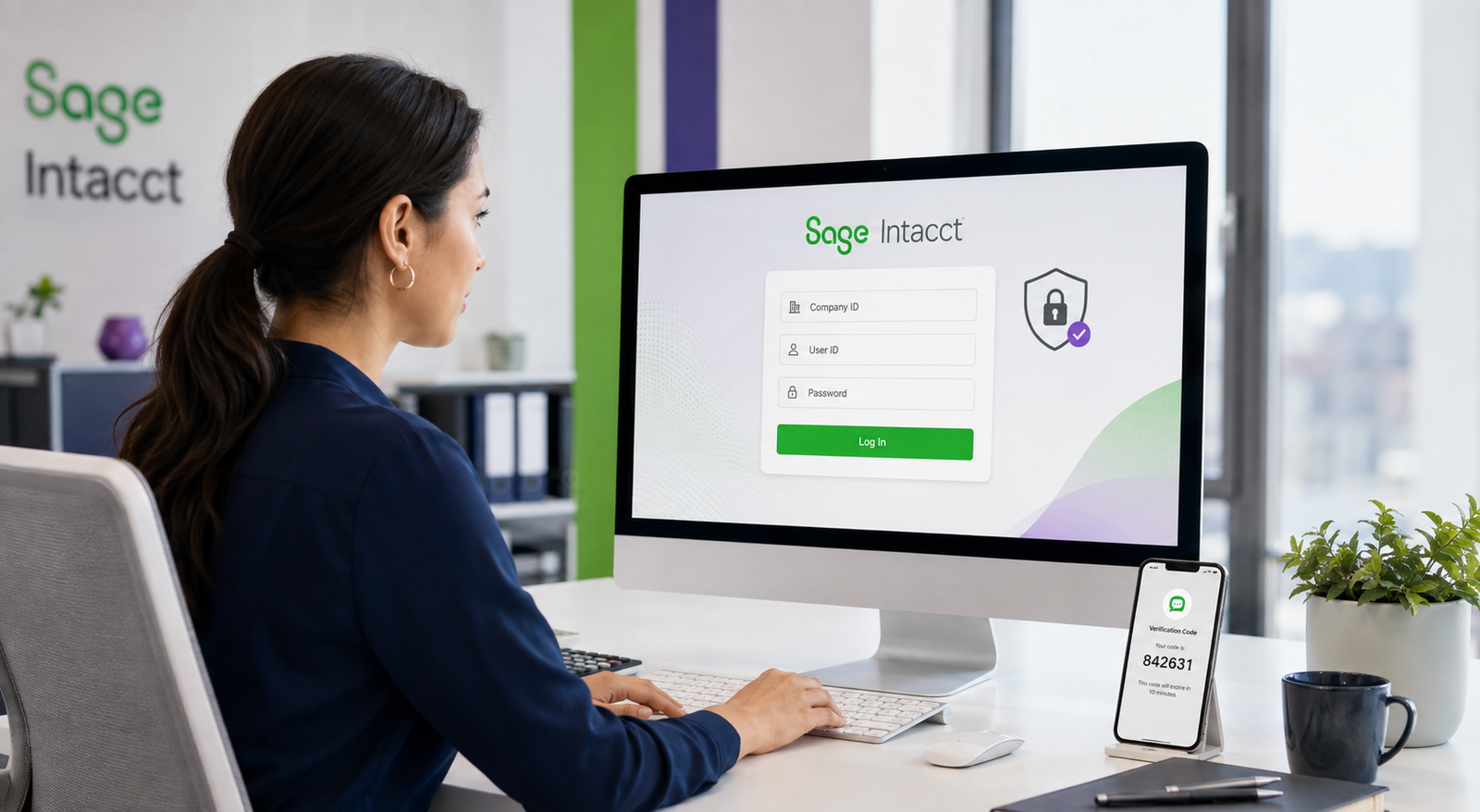
Sage Intacct is a cloud-based financial management platform used by accounting teams, finance professionals, and growing businesses. Because it stores sensitive financial information, users must follow the correct Sage Intacct login process and take appropriate security precautions when accessing their accounts.
The standard login process is straightforward. However, users may occasionally face problems related to incorrect credentials, expired passwords, browser settings, two-step verification, single sign-on, or account permissions.
This guide explains how to access your Sage Intacct account safely, use single sign-on, reset your password, troubleshoot common login problems, and protect your financial data.
What Do You Need Before Logging In to Sage Intacct?
Before accessing the Sage Intacct login portal, keep the required account information ready. Most users will need the following details:
- Company ID
- User ID
- Password
- Access to the registered email address
- Authentication device or verification method, if enabled
- Stable internet connection
- Supported and updated web browser
The Company ID is the unique name Sage Intacct uses to identify an organization. It differs from the company’s regular business name and normally cannot be changed after implementation. A standard standalone company login generally requires a Company ID, User ID, and password.
If your organization uses single sign-on, you may not need to enter all three credentials manually. Instead, you may be redirected to your company’s identity provider.
How to Complete the Sage Intacct Login
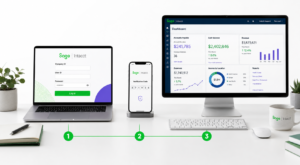
Follow these steps to access your Sage Intacct account.
Step 1: Open the Official Sage Login Page
Go to the official Sage website and open the product login page. Locate Sage Intacct in the list of products and select the appropriate login option. Sage provides a dedicated product portal where customers can access Sage Intacct and other Sage applications.
Avoid accessing the login page through an unfamiliar email, advertisement, or third-party website. A fraudulent page may look similar to the real portal and attempt to capture your credentials.
If you regularly use Sage Intacct, bookmark the official login page after confirming the web address is legitimate.
Step 2: Enter Your Company ID
Enter the Company ID provided by your Sage Intacct administrator, implementation partner, or finance department.
The Company ID may be case-sensitive, so type it exactly as it was provided. Avoid adding unnecessary spaces before or after it.
If you do not know your Company ID, contact your company administrator. An administrator with appropriate permissions can generally find it under:
Company > Setup > Configuration > Company Information
Do not confuse the Company ID with the Customer ID. They serve different purposes within the Sage ecosystem.
Step 3: Enter Your User ID
Type your individual User ID in the appropriate field.
Every person who needs to access Sage Intacct should have a unique user record. Sharing one account between multiple employees makes it harder to manage permissions, maintain accountability, and identify unusual activity. Sage documentation confirms that each user who signs in should have a unique user record.
If your User ID is not working, check:
- Whether you are using the correct capitalization
- Whether Caps Lock is enabled
- Whether the account has been deactivated
- Whether you are entering an email address instead of the assigned User ID
- Whether you have selected the correct company
Contact your administrator if you are uncertain about your assigned User ID.
Step 4: Enter Your Password
Enter your Sage Intacct password carefully. Passwords are case-sensitive, so uppercase and lowercase letters must be entered correctly.
Avoid copying a password from a document that may contain hidden spaces. If you use a password manager, confirm that it has selected the credentials for the correct Sage Intacct company.
Never share your password through email, text message, chat, or an unsecured document.
Step 5: Select “Log In”
After checking the information, select Log In.
If the credentials are correct and the account is active, Sage Intacct will open your company environment. Depending on your permissions, you may see dashboards, reports, accounts payable, accounts receivable, cash management, purchasing, or other financial modules.
The options available after login depend on the role and permissions your administrator assigns.
Step 6: Complete the Verification Process
Your organization may require two-step verification or another authentication method. If so, follow the on-screen instructions.
You may be asked to:
- Enter a time-sensitive verification code
- Approve a notification on an authentication app
- Use an alternative recovery method
- Authenticate through your organization’s identity provider
Never share verification codes with anyone. A legitimate support representative should not need your password or authentication code to diagnose a general login problem.
How to Log In Using Single Sign-On
Some organizations configure single sign-on, commonly called SSO, for Sage Intacct. SSO allows employees to authenticate through the organization’s identity management system.
To access Sage Intacct using SSO:
- Open the official Sage Intacct sign-in page.
- Select Use single sign-on.
- Enter the requested company or organizational information.
- Continue to your company’s identity provider.
- Enter your corporate login credentials.
- Complete multi-factor authentication if required.
- Allow the system to redirect you to Sage Intacct.
Sage Intacct user accounts can be configured with SSO, but the feature must be enabled for the individual user and properly connected to a federated identity.
If standard login works but SSO does not, the problem may be related to your company’s identity provider rather than Sage Intacct itself. Contact your IT team or Sage Intacct administrator.
How to Reset a Forgotten Sage Intacct Password
If you cannot remember your password, do not guess it repeatedly. Multiple unsuccessful attempts may lock the account.
To begin a Sage Intacct password reset:
- Open the official Sage Intacct login page.
- Select Forgot password?
- Enter your Company ID.
- Enter your User ID.
- Select Continue.
- Check the email address connected to your user account.
- Open the password recovery email.
- Follow the provided link.
- Create and confirm a new password.
- Return to the official login page and sign in.
The reset link may expire after a limited time. Complete the process promptly and request a new email if the link is no longer valid.
If you do not receive the password reset email:
- Check your spam or junk folder.
- Search for messages from Sage or Sage Intacct.
- Confirm that you entered the correct Company ID and User ID.
- Wait a few minutes before submitting another request.
- Ask your administrator to verify the email address attached to your profile.
- Contact your IT department to check whether the email was blocked.
If you no longer have access to the registered email address, contact your administrator or authorized Sage support channel. Do not create another account unless instructed to do so.
Common Sage Intacct Login Problems and Solutions

A failed login does not always mean your password is incorrect. Use the following checks to identify the likely cause.
Incorrect Company ID or User ID
The Company ID and User ID must match the information in your Sage Intacct account. Check for spelling errors, incorrect capitalization, and extra spaces.
If you work with multiple organizations, confirm that your password manager hasn’t entered credentials for another company.
Incorrect or Expired Password
Use the Forgot password? option if you cannot remember the correct password. Avoid repeated attempts, as the account may be locked after too many failures.
If your organization has a password expiration policy, you may be required to create a new password before accessing the application.
Account Is Locked
An account may become locked because of repeated failed attempts or an administrative security policy.
Wait for the defined lockout period, if applicable, or contact your Sage Intacct administrator. Administrators can check whether your account is active, locked, or disabled.
Verification Code Does Not Arrive
If a verification code does not arrive:
- Confirm that your phone has a network connection.
- Check whether the registered number or email address is current.
- Request a new code.
- Verify that messages from Sage are not being blocked.
- Use an approved recovery method.
- Contact the administrator if your authentication device has changed.
Do not approve an unexpected authentication request. It could indicate that someone else is attempting to access your account.
Browser Cache or Cookie Problems
Old cookies or saved browser data may sometimes interfere with authentication.
Try these steps:
- Close and reopen the browser.
- Open the login page in a private or incognito window.
- Clear cookies and cached data for Sage-related websites.
- Temporarily turn off extensions that may block scripts or pop-ups.
- Make sure JavaScript and cookies are allowed.
- Try another supported browser.
If Sage Intacct works in an incognito window but not in the normal browser window, saved cookies or an extension may be causing the issue.
Single Sign-On Is Not Working
If you use SSO, check whether you can access other company applications through the same identity provider. If those applications also fail, contact your internal IT department.
SSO problems may result from:
- Expired corporate passwords
- Incorrect SSO configuration
- Disabled employee accounts
- Identity provider outages
- Missing Sage Intacct user mapping
- Changes to the employee’s email address
User Does Not Have the Required Permissions
You may log in successfully but still be unable to open a module, report, entity, or transaction.
This is usually a permissions issue rather than a login problem. Ask the administrator to review your role, entity restrictions, department access, and module permissions.
Sage Intacct Service Is Unavailable
If several users experience the same problem at the same time, check for a service interruption or scheduled maintenance. Avoid changing passwords unnecessarily during a confirmed outage.
Your administrator can check the official Sage service status information or contact support if the issue continues.
How to Keep Your Sage Intacct Account Secure
A successful Sage Intacct sign-in provides access to important accounting and business information. Follow these practices to reduce security risks.
Use a Unique Password
Do not reuse a password from email, social media, banking, or another business application. If one service is compromised, reused credentials can expose additional accounts.
A strong password should be long, difficult to guess, and unique to Sage Intacct.
Enable Multi-Factor Authentication
Multi-factor authentication adds another verification step beyond the password. This helps keep the account secure even if the password is compromised.
Sage recommends individual user credentials because authentication methods are designed to verify individual users.
Never Share Login Credentials
Each employee should use a separate account. Shared logins weaken audit trails and make it difficult to remove access when someone changes roles or leaves the organization.
Verify the Website Address
Before entering credentials, confirm that the page belongs to Sage or an approved organizational identity provider. Be cautious if the page has spelling errors, an unusual domain, or unexpected download requests.
Avoid Public Wi-Fi
Do not access sensitive financial systems through unsecured public Wi-Fi. If you need access while traveling, use a trusted connection and follow your company’s security policy.
Keep Your Browser and Device Updated
Install operating system, browser, and security updates regularly. Outdated software can create security gaps that may leave your system open to cyberattacks.
Log Out When You Finish
Always log out after completing your work, especially when using a shared or temporary computer. Closing the browser window alone may not end every active session.
Review User Access Regularly
Administrators should periodically review active users, assigned roles, login permissions, and access restrictions. Remove accounts that are no longer required and apply the principle of least privilege.
What Should Administrators Check When a User Cannot Log In?
Before contacting support, a Sage Intacct administrator should verify:
- The Company ID is correct.
- The User ID exists.
- The user account is active.
- Login access has not been disabled.
- The email address is current.
- The user has the required role and permissions.
- SSO is configured correctly.
- Two-step verification settings are valid.
- Entity or location restrictions are appropriate.
- The issue affects one user or multiple users.
Only users with the required administrative privileges can create or manage users. Sage Intacct may also require the administrator to verify their identity before adding or editing a user.
Frequently Asked Questions
What is the official Sage Intacct login page?
The safest method is to visit the official Sage product login page and select Sage Intacct—Bookmark the verified page for future use instead of relying on links received through unsolicited emails.
What information do I need to log in?
A standard login generally requires a Company ID, User ID, and password. You may also need a verification code. SSO users may be redirected to their organization’s identity provider.
Is the Company ID the same as the Customer ID?
No. The Company ID identifies the Sage Intacct company used during login. The Customer ID represents the organization associated with the Sage contract or account.
Why is my Sage Intacct account locked?
The account may be locked after multiple incorrect login attempts or because of an administrative security setting. Contact your administrator if access is not restored automatically.
Can multiple employees share one Sage Intacct login?
They should not. Every user should have an individual account with permissions based on their job responsibilities. This improves security and creates a clearer activity record.
Why can I log in but not access a report or module?
Your login is working, but your account may not have the required permissions. Ask the administrator to review your assigned roles and access restrictions.
Can I access Sage Intacct from any device?
Because Sage Intacct is cloud-based, you can access it through a compatible web browser and internet connection. However, use a secure, updated, company-approved device.
What should I do if I receive an unexpected verification request?
Do not approve it. Change your password through the official portal and notify your administrator or security team because someone may be attempting to access your account.
Final Thoughts
The Sage Intacct login process usually requires a valid Company ID, individual User ID, and password. Organizations using SSO or additional verification may require another authentication step before granting access.
Most login problems can be resolved by checking the credentials, resetting the password, clearing browser cookies, verifying the authentication method, or contacting the company administrator. Users should always access Sage Intacct through an official page, protect their passwords, use multi-factor authentication, and avoid shared accounts.
Following these precautions helps protect sensitive financial information while giving authorized employees reliable access to the accounting tools they need.