 Admin
AdminWhat Is QuickBooks Payroll: A Complete Guide for QuickBooks Users
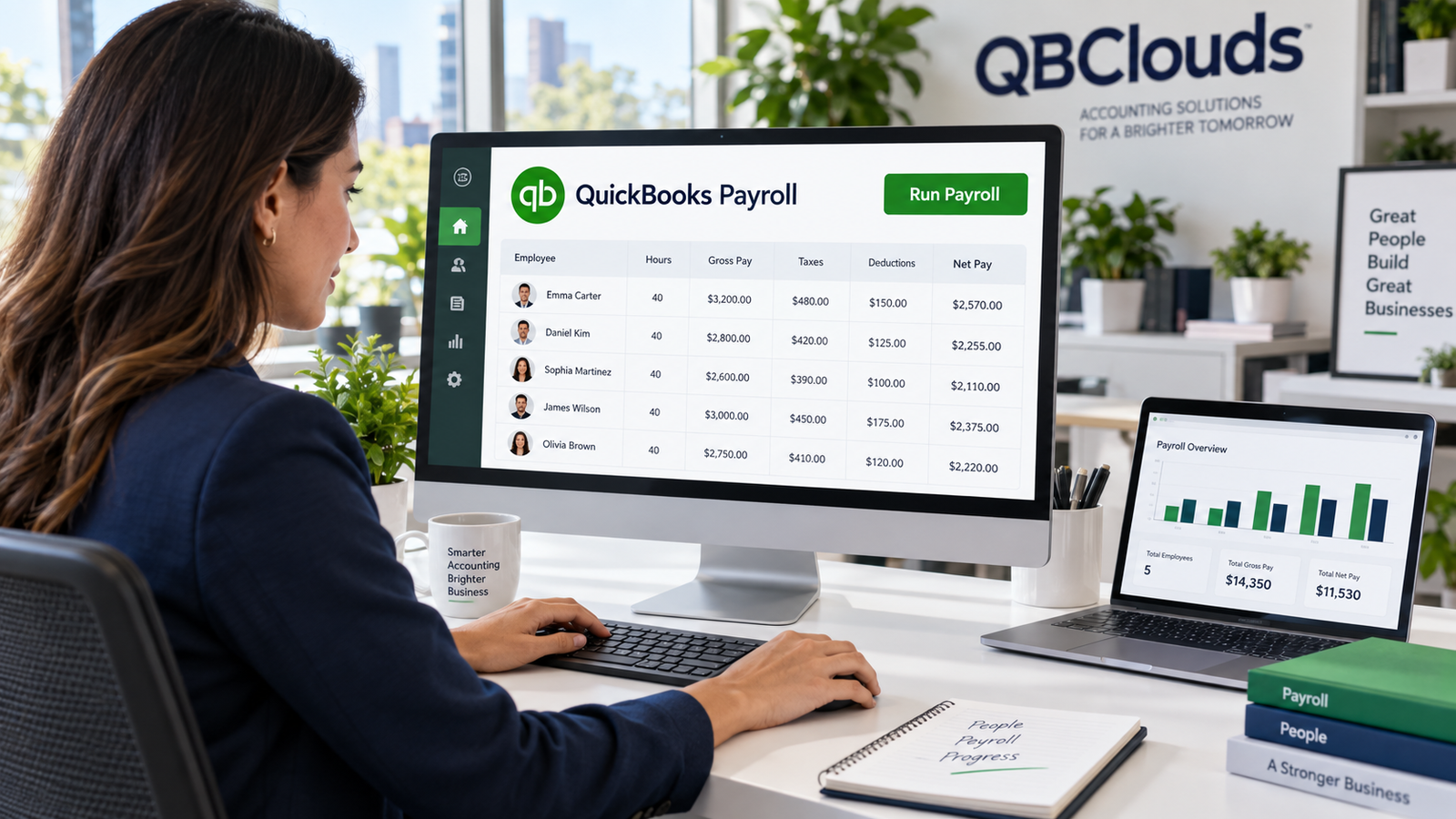
Keeping employee pay, deductions, and payroll records in order takes time and attention. QuickBooks Payroll helps simplify this process. In this guide, you’ll learn how it works, explore its features and plans, and understand how to set up and run payroll.
What Is QuickBooks Payroll?
QuickBooks Payroll is a payroll service from Intuit that helps businesses calculate employee wages, apply deductions, and pay employees. It works with QuickBooks accounting software to keep payroll and accounting records connected, reducing the need to enter the same information twice.
Businesses can use it to pay employees through direct deposit or checks and maintain payroll records. Depending on the plan and setup, it can also calculate, file, and pay eligible payroll taxes. You still need to provide accurate employee details and review payroll before submitting it.
Types of QuickBooks Payroll
For US businesses, QuickBooks Payroll options depend on whether you use QuickBooks Online or QuickBooks Desktop. Understanding the difference can help you choose a suitable payroll service.
QuickBooks Online Payroll
QuickBooks Online Payroll is a cloud-based service that lets businesses manage payroll online. It helps calculate employee pay and deductions, process payments, and handle eligible payroll tax filings. It connects with QuickBooks Online, making it useful for businesses that want to manage accounting and payroll online.
QuickBooks Desktop Payroll
QuickBooks Desktop Payroll works within compatible QuickBooks Desktop software. It helps businesses calculate wages and payroll taxes, create paychecks, and maintain employee payroll records. Tax filing assistance depends on the subscription. Availability also varies, so businesses should check which services are supported for their Desktop version before choosing a plan.
How Does QuickBooks Payroll Work?
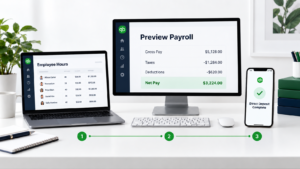
QuickBooks Payroll uses your business details, employee information, and payroll settings to calculate employee pay. To get started, you need a supported payroll subscription. You then add employee details, pay rates, tax information, and deductions, and choose how often employees will be paid.
For each payday, enter or review working hours, overtime, bonuses, and any changes in pay. QuickBooks calculates gross wages, applicable taxes, deductions, and take-home pay based on these details. You review the results before submitting payroll and paying employees through direct deposit or checks.
The service also keeps payroll records for reporting. Depending on your subscription and setup, it can handle eligible payroll tax payments and filings.
Benefits of QuickBooks Payroll
QuickBooks Payroll helps businesses reduce manual work and keep employee payments organized. Here are some of its main benefits.
1. Save Time and Effort
Calculating wages and deductions manually can take hours each payday. QuickBooks Payroll handles these calculations using the information you enter. This reduces repetitive work and gives you more time to review payments and manage your business.
2. Prepare for Payroll Taxes
Payroll taxes involve calculations, payment deadlines, and required forms. QuickBooks Payroll helps calculate applicable taxes, while supported services can also handle tax payments and filings after setup. This reduces manual work, but accurate employee information and tax settings are still essential.
3. Maintain Employee Information
Keeping employee details in separate files can make payroll harder to manage. QuickBooks Payroll brings information such as pay rates, tax details, and deductions together in employee records. This makes it easier to find information and update it when an employee’s circumstances change.
4. Assign Employee Payrolls to Jobs
With a compatible QuickBooks setup, you can connect employee time and related payroll costs to specific jobs. This helps you understand how much you spend on labor for each project. Comparing these costs with project income can help you review profitability and prepare better estimates for future work.
5. Management of Employees
QuickBooks Payroll makes it easier to handle pay changes, deductions, and paid time off. Depending on your plan and connected tools, employees can also access pay information and submit timesheets. This can reduce routine questions and help managers review employee hours before payday.
Features of QuickBooks Payroll
QuickBooks Payroll offers tools to simplify employee payments and reduce routine payroll work. Available features depend on your subscription and setup.
1. Direct Deposit for Employees
Direct deposit lets you send employee pay directly to their bank accounts, reducing the need to print and distribute checks. Payment timing depends on your payroll service, eligibility, and when you submit payroll.
2. Payroll Runs Are Unlimited
QuickBooks Online Payroll includes unlimited payroll runs. Along with regular paydays, you can process extra payments for bonuses, commissions, or pay adjustments without an additional charge for each run. Subscription and employee fees still apply.
3. Automatic Tax Calculation and Filing
The software calculates applicable payroll taxes using employee wages and tax settings. Supported services also file eligible payroll forms and make tax payments after you complete the required setup. Keeping your business and employee details accurate helps these tasks run correctly.
4. Payroll Automation
Auto Payroll can process payments for eligible employees whose pay stays consistent between paydays. This reduces the need to enter the same details repeatedly. You should still review payroll and make any necessary changes for bonuses, unpaid leave, or updated deductions before processing.
5. QuickBooks Workforce
QuickBooks Workforce gives employees online access to pay stubs and available W-2 forms. They can check their pay information without requesting copies from the payroll team. With supported time-tracking features, employees can also record working hours and submit timesheets for approval.
How to Set Up Payroll in QuickBooks

To set up QuickBooks Online Payroll, keep your business tax information, employee details, and bank account information ready. Then follow these steps:
Step 1: Open the Payroll Section
Sign in to QuickBooks Online and open Payroll. Choose a payroll plan if you haven’t subscribed, then follow the instructions to begin setup.
Step 2: Add Your Business Information
Enter your business name, address, Employer Identification Number (EIN), and required state tax details.
Step 3: Add Employee Details
Add each employee’s name, address, Social Security number, and W-4 tax information. Enter their hourly rate or salary and any deductions, such as health insurance contributions.
Step 4: Choose a Pay Schedule
Select how often you will pay employees—for example, weekly, every two weeks, or monthly. Set the pay period and first payment date.
Step 5: Set Up Employee Payments
Choose direct deposit or paper checks. For direct deposit, connect and verify your business bank account and enter each employee’s bank details.
Step 6: Enter Earlier Payroll Records
If you have already paid employees during the current year, add their previous wages, deductions, and taxes. Include payroll tax payments you have already made. Skip this step if you haven’t paid any employees this year.
Step 7: Review and Finish Setup
Check the information you entered, complete the tax payment and filing setup, and sign any required authorization forms. Finish all pending setup tasks before processing your first payroll.
How to Run Payroll in QuickBooks
After completing setup, you can run payroll in QuickBooks Online Payroll by following these steps:
Step 1: Open Payroll
Sign in to QuickBooks Online, open the payroll section, and select Run payroll.
Step 2: Check the Pay Schedule and Dates
Choose the pay schedule you want to process. Confirm the pay period and payday so employees are paid for the correct dates.
Step 3: Select Employees
Choose the employees you want to pay in this payroll run.
Step 4: Enter Hours and Additional Pay
Enter hours worked for hourly employees and review salary amounts for salaried employees. Add any overtime, bonuses, commissions, or other pay adjustments.
Step 5: Preview Payroll
Select Preview payroll. Check each employee’s wages, taxes, deductions, and take-home pay. Correct any mistakes before continuing.
Step 6: Confirm the Payment Account
Check that the correct business bank account is selected and that enough money is available to cover payroll.
Step 7: Submit Payroll
Select Submit payroll once everything is correct. For direct deposit, submit before the deadline shown in your account to avoid late payments.
Step 8: Provide Pay Stubs or Print Checks
After submission, make pay stubs available to employees. If you pay by paper check, print and distribute the checks.
QuickBooks Payroll Service Plans and Pricing
QuickBooks offers three US online payroll plans under the QuickBooks Workforce name. You pay a fixed monthly fee plus a monthly fee for each employee.
| Service Plan | Monthly Base Fee | Monthly Fee per Employee |
| Workforce Payroll | $50 | $7 |
| Workforce Premium | $88 | $13 |
| Workforce Elite | $134 | $17 |
Example: If you choose Workforce Payroll for five employees, you pay $50 plus $35 in employee fees. Your total is $85 per month.
How to Fix Payroll Errors in QuickBooks

QuickBooks Desktop may show errors while downloading payroll updates, updating tax tables, or paying employees. Check the exact error message before choosing a solution, as repair and reinstall steps will not fix every payroll problem.
Before you begin, back up your company file and keep your QuickBooks installer and license details ready.
1. Run a Repair on QuickBooks
Use QuickBooks Tool Hub to fix common program problems:
- Close QuickBooks Desktop.
- Download and install the latest QuickBooks Tool Hub from the official website.
- Open the Tool Hub and select Program Problems.
- Click Quick Fix my Program.
- Wait for the process to finish.
- Open QuickBooks and check whether the payroll error still appears.
2. Uninstall and Reinstall QuickBooks
If damaged installation files are causing the error, reinstalling QuickBooks may help.
- Open the Windows Start menu and search for Control Panel.
- Select Programs and Features.
- Choose your QuickBooks Desktop version.
- Click Uninstall/Change, select Remove, and follow the prompts.
- Reinstall QuickBooks using the installer for your version.
- Open your company file and check whether the issue is resolved.
3.QuickBooks folder locations
If further troubleshooting requires locating QuickBooks folders, common locations include:
- C:\ProgramData\Intuit\QuickBooks (year)
- C:\Users\(current user)\AppData\Local\Intuit\QuickBooks (year)
- C:\Program Files\Intuit\QuickBooks (year)
- C:\Program Files (x86)\Intuit\QuickBooks (year)
Older installations may also have Intuit files in these locations:
- C:\Program Files\Intuit
- C:\Program Files\Common Files\Intuit
- C:\Documents and Settings\All Users\Application Data\Intuit
- C:\Documents and Settings\All Users\Application Data\Common Files\Intuit
- C:\Documents and Settings\All Users\Documents\Intuit
The Documents and Settings paths belong to older Windows versions. The Documents folder may appear as Shared Documents.
Do not delete these folders as a routine troubleshooting step. They may contain shared components or company data. If a normal reinstall fails, follow the official manual reinstall procedure to rename only the affected QuickBooks version’s folders before reinstalling.
If the error continues, use the exact error code to find the appropriate solution.
4. Bottom Line
QuickBooks Payroll can make employee payments, tax calculations, and payroll records easier to manage. Choosing a suitable plan and completing the setup correctly can reduce manual work and help you prepare for each payday.
Before subscribing, compare the features, total monthly cost, and compatibility with your QuickBooks software. If your team uses QuickBooks Desktop and needs remote access, QuickBooks hosting can also help employees work with the desktop software from different locations.
Keep employee information updated and review each payroll before submitting it. These simple habits can help you avoid common mistakes and keep your payroll process organized.
Frequently Asked Questions (FAQs)
Do I Need to Update QuickBooks Payroll Every Year?
Keep your payroll service updated throughout the year. Online payroll receives updates automatically. QuickBooks Desktop users need to install software and payroll tax table updates as they become available. Continued payroll services require an active subscription and a supported version.
How to Enter Payroll in QuickBooks Without a Subscription?
In QuickBooks Online, you can use journal entries to record payroll processed outside QuickBooks. These entries record payments and expenses but do not calculate taxes or prepare W-2 forms. Some Desktop versions support manual payroll, where you calculate wages, deductions, and taxes yourself.
How to Add Payroll to QuickBooks?
Open the payroll section in QuickBooks Online, choose a payroll subscription, and follow the setup instructions. Add your business details, employee information, pay schedule, and bank account. Desktop users should first check which payroll services their version supports.
How to Change the Bank Account for Payroll in QuickBooks Online?
Go to Settings → Payroll Settings → Bank Accounts → Edit. Select Update, then Add new bank account. Connect the new account or enter its details and complete verification. Check pending payroll and tax payments before making the change.
What Is the QuickBooks Payroll Support Number?
The correct support number depends on your payroll product and country. To find your account’s contact details, sign in to QuickBooks, open Help, and select the contact option. Available support may include phone assistance, chat, or a callback.
Is QuickBooks Payroll Easy?
QuickBooks Payroll can simplify routine payroll by calculating pay and deductions and organizing records. Initial setup requires care, especially when entering previous payroll information. After setup, you mainly review employee hours, pay changes, and payment totals before submitting payroll.
Is QuickBooks Payroll Free?
No, QuickBooks Payroll is a paid service. Online plans generally include a monthly base fee and a charge for each employee. A free trial or introductory discount may be available, depending on the current offer and eligibility requirements.
Does QuickBooks Payroll Do Direct Deposit?
Yes, supported payroll services offer direct deposit. You need to verify your business bank account and add employee banking details. Payment timing depends on your plan, eligibility, and when you submit payroll.
Does QuickBooks Do Payroll Taxes?
Yes, QuickBooks Payroll calculates applicable payroll taxes. Supported services also pay and file eligible taxes after setup is complete. Coverage varies by subscription, so check which taxes your service handles and keep your tax information accurate.
Does QuickBooks Do Payroll?
Yes, QuickBooks offers payroll services to calculate wages, apply deductions, and pay employees. Automated payroll features require a suitable payroll subscription. A standard accounting subscription alone does not include all payroll services.

1 Comment
W-2 vs W-4: Key Differences Explained | QBClouds
September 9, 2026[…] using QuickBooks can explore our QuickBooks Payroll guide to understand payroll setup and employee pay […]