
 Admin
AdminTop Accounting Tools in QuickBooks Desktop Enterprise

QuickBooks Desktop Enterprise helps businesses manage their accounting as their daily work becomes more complex. Along with recording income and expenses, it offers features for managing inventory, reviewing financial reports, and keeping track of customer and vendor transactions.
If you have used QuickBooks Pro or Premier, you may already know the basic accounting features. Enterprise builds on these capabilities with tools that support more detailed reporting and larger accounting workloads. For business owners, CPAs, and bookkeepers, these features can make it easier to review records and find errors that need attention.
In this blog, we’ll explore the top accounting tools in QuickBooks Desktop Enterprise, explain their uses, and help you understand which ones are available in your edition. Some tools are specific to Enterprise Accountant or depend on your subscription plan.
What Is QuickBooks Desktop Enterprise?
QuickBooks Desktop Enterprise is accounting and business management software from Intuit. It helps businesses manage invoices, expenses, inventory, customer payments, and financial reports in one place. It is designed for businesses that need more capacity and advanced features than QuickBooks Pro or Premier.
Enterprise supports industries such as manufacturing, wholesale, construction, and retail. For example, a construction company can track costs for individual jobs, while a wholesaler can manage inventory and purchase orders. These features help businesses keep their accounting records connected to daily operations.
QuickBooks Enterprise is available through four subscription plans: Silver, Gold, Platinum, and Diamond. Feature availability depends on the plan you choose. It supports up to 30 users, or up to 40 users with Diamond, with a separate license required for each user. Businesses can also add cloud hosting to access the desktop software remotely.
QuickBooks Enterprise vs. Enterprise Accountant: Which Tools Are Available?
QuickBooks Desktop Enterprise and Enterprise Accountant share many accounting features, but their main purpose differs. QuickBooks Enterprise helps businesses manage everyday tasks such as invoicing, bill payments, inventory tracking, and reporting. Enterprise Accountant adds tools for accountants who need to review client records and correct bookkeeping errors.
The difference is easier to understand when you compare their tools:
| Tool or Feature | QuickBooks Enterprise | Enterprise Accountant |
| Invoicing and expense tracking | Available | Available |
| Financial reports and bank reconciliation | Available | Available |
| Accountant Center | Not included in the standard edition | Available |
| Client Data Review | Full Accountant review toolkit not included | Available |
| Batch transaction reclassification | Dedicated Accountant tool not included | Available for eligible transactions |
| QuickBooks File Manager | Not included as a standard business tool | Available for organizing client files |
For example, both editions let users review expenses. However, Enterprise Accountant includes a dedicated tool for moving multiple eligible transactions to the correct account or class at once. Its Client Data Review tools also help accountants investigate balance differences and clean up client records.
Your edition and subscription plan both affect feature availability. Accountant tools depend on the edition, while features such as Advanced Inventory and Advanced Pricing depend on the subscription plan. Before looking for a tool, check which edition and plan you use.
Top Accounting Tools in QuickBooks Desktop Enterprise
QuickBooks Desktop Enterprise offers tools for reviewing transactions, checking transactions, checking balances, and keeping financial records organized. Some are available in the standard Enterprise edition, while others belong to Enterprise Accountant’s Client Data Review toolkit. Features such as landed cost also depend on your subscription plan.
Below are the key tools and accounting tasks, along with simple explanations of how they help.
Accountant Center
The Accountant Center brings useful accounting shortcuts, reports, and reconciliation tools into one place in Enterprise Accountant. It helps accountants move between common tasks without searching through several menus.
For example, while reviewing a company file, you can open a financial report and then move to a related reconciliation task. This makes routine reviews easier to organize, especially when working with several clients.
Write Off Unpaid Invoices
Sometimes, a customer invoice remains unpaid because the amount is uncollectible or a small balance is no longer worth pursuing. The Write Off Invoices tool in the Accountant edition helps you close eligible outstanding invoices and record the write-off against an appropriate account.
You can review and select multiple invoices, which saves time when cleaning up accounts receivable. Before proceeding, confirm that each balance should be written off and have your accountant check the account and tax treatment.
Reclassify Transactions in Batches
A transaction recorded under the wrong account can affect your financial reports. For example, office expenses entered as advertising costs will make both expense categories inaccurate.
The Reclassify Transactions tool in Enterprise Accountant lets you change the account or class for multiple eligible transactions at once. This is helpful when the same mistake appears across several entries. However, it cannot change every transaction type, so review eligibility and the selected entries before applying changes.
Client Data Review
Client Data Review is a collection of tools in Enterprise Accountant that helps accountants check a client’s books and resolve common bookkeeping problems.
It brings together tasks such as reviewing account balances, reclassifying transactions, checking unapplied payments, and investigating certain tax or payroll issues. Accountants can organize the review for a selected period and track their progress. This creates a more structured process for month-end or year-end cleanup.
Fix Opening Balance Differences
An opening balance is the amount an account carries into a new accounting period. If someone changes or deletes a transaction from an earlier period, that balance may no longer match the accountant’s previous records.
Enterprise Accountant’s balance review tools help identify differences between previously reviewed balances and the client’s current figures. Investigate what caused the difference before making an adjustment. Adding an entry simply to force the balances to match can hide the original error.
Audit Trail and List Changes Review
The Audit Trail report helps you investigate changes to transactions, including edits and deletions. It is useful when an amount changes unexpectedly or a previously reviewed report no longer matches your records.
List Changes Review, available through Client Data Review, focuses on changes to supported lists, such as accounts and items. These functions serve different purposes: one helps you follow transaction activity, while the other helps you examine changes to the records used to organize transactions.
Fix Unapplied Customer Payments and Credits
A customer may have paid an invoice, but the invoice can still appear unpaid if the payment was not applied correctly. An unused credit can also leave the customer’s account showing an outstanding balance.
The Accountant review tool helps you find unapplied payments and credits and match them to the appropriate open invoices. For example, if a payment was recorded against the customer but left unassigned, you can apply it without entering the payment again.
Merge Duplicate Vendors
Duplicate vendor records can split one supplier’s transaction history across different names. For example, “ABC Supplies” and “ABC Supplies Inc.” may refer to the same business.
Merging vendor records brings that history under one vendor name, making bills, payments, and reports easier to review. Check that the records represent the same supplier and save any details you need before merging. Back up your company file first, because merging cannot simply be undone.
Review and Correct Sales Tax Records
Sales tax records can become inaccurate when a payment is entered incorrectly. For example, recording a payment as a regular check instead of through the appropriate sales tax payment process may leave the liability showing as unpaid.
The sales tax review tools in Enterprise Accountant help identify certain incorrectly recorded payments and support their correction. Compare the entries with the actual payment and relevant filing records before making changes.
Search Within Reports
Searching within supported reports helps you find a particular amount, name, or other detail without reading every row. This is useful when reviewing a long report containing many transactions.
For example, you might search for a supplier’s name to locate entries that need closer review. Search helps you find information in the displayed report, while filters narrow which records the report includes. The search options available can vary by software version and report.
Track Inventory Expenses with Landed Cost
The purchase price of an inventory item may not represent its full cost. Freight, insurance, customs duties, and other related charges can also affect how much you spend to acquire it.
Landed Cost, available with Enterprise Platinum and Diamond, helps allocate these additional costs to inventory items. This gives you a clearer view of product costs and margins. For example, allocating freight across a shipment helps you assess profitability more accurately than using the supplier’s item price alone.
Review and Correct Payroll Liabilities
Payroll liabilities are amounts your business owes after processing payroll, such as withheld taxes and certain benefit deductions. Incorrect payment entries or adjustments can cause these balances to differ from what is actually owed.
Payroll review tools and reports help you investigate these differences. Compare the payroll records with payment confirmations and applicable filings before making corrections. Avoid clearing a balance just because it looks old; first confirm whether it represents an unpaid obligation or a recording error.
Reconcile Inventory Valuation with the Balance Sheet
Your inventory valuation report and the inventory asset balance should agree when you compare the appropriate accounts using the same reporting date and basis.
If they differ, investigate transactions that may have affected the inventory asset account without updating item quantities or values. For example, a direct journal entry to the inventory asset account can create a mismatch. This review helps you find the cause of the difference before deciding how to correct it.
Clean Up Undeposited Funds
Undeposited Funds temporarily holds received payments before they are grouped into a bank deposit. It allows the deposit recorded in QuickBooks to match the combined amount shown on your bank statement.
Old balances can remain when deposits are recorded separately without linking the original customer payments. Reviewing this account helps you identify payments still awaiting deposit and possible duplicate entries. Match the records with your bank deposits before making changes so that income is not counted twice.
Working Trial Balance
The Working Trial Balance in Enterprise Accountant helps accountants review account balances and adjustments during the closing process. It provides a workspace for comparing balances and documenting review notes.
For example, an accountant can use it to examine an expense account, note an adjustment that needs attention, and review the resulting balance. It supports an organized final review, but balanced totals alone do not prove that every transaction has been recorded correctly.
How to Access Accounting Tools in QuickBooks Desktop Enterprise
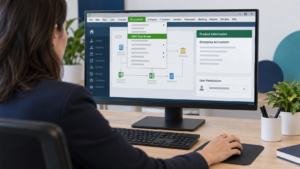
The tools you can access depend on your QuickBooks edition and user permissions. Start by checking your software, then open the menu for the task you want to complete.
Check Your QuickBooks Edition and User Permissions
Open QuickBooks and press F2 or Ctrl + 1 to view the Product Information window. Check the product name and version to confirm whether you are using standard Enterprise or Enterprise Accountant.
Your login permissions also affect what you can view or change. If a feature is unavailable, ask your QuickBooks administrator to check your assigned role. Administrator access does not add Accountant-specific tools to the standard Enterprise edition.
Find the Accountant Menu and Available Tools
In Enterprise Accountant, look for the Accountant menu at the top of the QuickBooks window. This menu provides access to tools such as Accountant Center and Client Data Review.
In standard Enterprise, you can access everyday accounting functions through menus such as Customers, Vendors, Banking, and Reports. For example, use Banking for bank reconciliation and Reports to review financial activity.
If you cannot see the Accountant menu, confirm your edition before assuming there is a software problem.
Open the Relevant Review or Reporting Tool
Choose the tool that matches the task you need to complete. Common examples include:
- Review client records: In Enterprise Accountant, open Accountant → Client Data Review.
- Reclassify eligible transactions: Open Accountant → Client Data Review → Reclassify Transactions.
- Review transaction changes: Open Reports → Accountant & Taxes → Audit Trail.
- Reconcile a bank account: Open Banking → Reconcile.
Menu labels may vary slightly by version. Once the tool opens, select the correct account, date range, and reporting basis where applicable. Review the results before editing any entries, and back up your company file before making bulk changes.
Best Practices Before Using Accounting Cleanup Tools

Accounting cleanup tools can help you correct errors and organize your books. However, changes to existing transactions can also affect balances and reports. Follow these steps to keep your cleanup work accurate and easy to review.
Back Up Your Company File
Create a backup of your QuickBooks company file before making cleanup changes. This gives you a recovery option if you accidentally merge the wrong records, remove an entry, or apply an incorrect adjustment.
Save the backup in a secure location and give it a clear name that includes the date. If other users work in the same file, coordinate the cleanup with them. Restoring an earlier backup can remove work entered after that backup was created.
Review Transactions Before Making Changes
Check the date, amount, account, customer or vendor, and payment status of each transaction you plan to edit. Compare the entry with supporting records, such as invoices, receipts, and bank statements.
Two transactions with the same amount are not necessarily duplicates. Similarly, an unpaid invoice may have a payment recorded elsewhere in the customer’s account. Understand the reason for the issue before correcting it, especially when selecting multiple transactions for a batch change.
Check the Accounting Period and Closing Date
Confirm which accounting period the transactions belong to before editing them. A change to an earlier period can affect previously reconciled balances, financial reports, or records used for tax filings.
If your company file has a closing date, treat it as a checkpoint. Ask your accountant to review changes involving closed periods rather than changing the closing date just to complete the cleanup.
Verify Account Balances After Making Changes
Run the relevant reports before and after the cleanup so you can compare the results. Use the same date range and reporting basis for both versions.
For example, after applying customer payments, check the Accounts Receivable Aging report and the affected customer balances. After correcting inventory entries, compare the inventory valuation with the related balance sheet account. Confirm that the original issue is resolved and that the change has not created another difference.
Ask Your Accountant to Review Complex Adjustments
Some corrections need more than a simple transaction edit. Opening balance differences, payroll liabilities, sales tax discrepancies, inventory adjustments, and changes to closed periods may affect several accounts.
Share the affected entries, supporting documents, and a brief explanation of the problem with your accountant. They can help determine the appropriate correction and accounting period. Keep a record of the adjustment and why it was made so that future reviews are easier.
Final Thoughts
The accounting tools in QuickBooks Desktop Enterprise help you review transactions, manage balances, and keep your books organized. Enterprise Accountant adds dedicated features for client reviews and accounting cleanup, while certain inventory and pricing features depend on your subscription plan.
Start with the tool that matches your task, review the affected records, and back up your company file before making changes. For complex adjustments, involve your accountant. If your team needs remote access, QuickBooks Enterprise hosting can make your desktop workspace available from different locations.
Frequently Asked Questions
Where Are the Accounting Tools in QuickBooks Desktop?
Accounting features are available through menus such as Customers, Vendors, Banking, and Reports. In Enterprise Accountant, the Accountant menu provides additional tools, including Accountant Center and Client Data Review. The tools you see depend on your edition and user permissions.
How Is QuickBooks Enterprise Different from Pro and Premier?
QuickBooks Enterprise supports more users, larger lists, and more complex business operations than Pro and Premier. It offers expanded reporting and user controls, with Advanced Inventory and Advanced Pricing available in qualifying plans. Enterprise is part of the QuickBooks Desktop product family.
Is There an Accountant Version of QuickBooks Desktop Enterprise?
Yes. QuickBooks Desktop Enterprise Accountant is designed for accounting professionals who work with client company files. It includes tools such as Accountant Center, Client Data Review, batch transaction reclassification, and QuickBooks File Manager to help organize files and simplify review tasks.
Why Can’t I See the Accountant Menu in QuickBooks?
You may be using the standard Enterprise edition, which does not include the same Accountant menu and toolkit as Enterprise Accountant. Check your product information to confirm your edition. If you have Enterprise Accountant but cannot access a particular tool, ask your administrator to review your permissions.
Are All Accounting Tools Available in Every Enterprise Plan?
No. Availability depends on both your edition and subscription plan. For example, Client Data Review belongs to the Accountant toolkit, while Advanced Inventory and Advanced Pricing are included in Platinum and Diamond. Upgrading a standard Enterprise plan does not automatically provide the Accountant edition.
Can I Access QuickBooks Enterprise Accounting Tools Remotely?
Yes. With a properly configured hosting or remote desktop setup, you can access QuickBooks Enterprise and its available tools over an internet connection. Your software edition, subscription, and user permissions still determine which features you can use. Hosting provides remote access; it does not unlock additional accounting tools.