 Admin
AdminQuickBooks Time Login: A Complete Guide for Employees and Managers

QuickBooks Time login lets employees access their timesheets and managers review their team’s work hours. Whether you need to clock in for a shift or check time entries before payroll, signing in is the first step.
This guide explains how to sign in on a computer or mobile device, set up your account for the first time, and fix common login problems. You will also learn simple ways to keep your account secure.
What Is QuickBooks Time?
QuickBooks Time is an online time-tracking tool that helps businesses record work hours, manage timesheets, and track time spent on jobs or customers. It keeps time records in one place, making them easier to review before payroll or billing.
Employees and managers can access it through a web browser or the QuickBooks Workforce mobile app.
Is QuickBooks Time the Same as TSheets?
Yes. TSheets is the former name of QuickBooks Time. If you are searching for TSheets login, you are looking for access to the service now called QuickBooks Time.
The name and some features have changed, but its main purpose is still to help businesses track and manage work hours.
How Employees and Managers Use QuickBooks Time
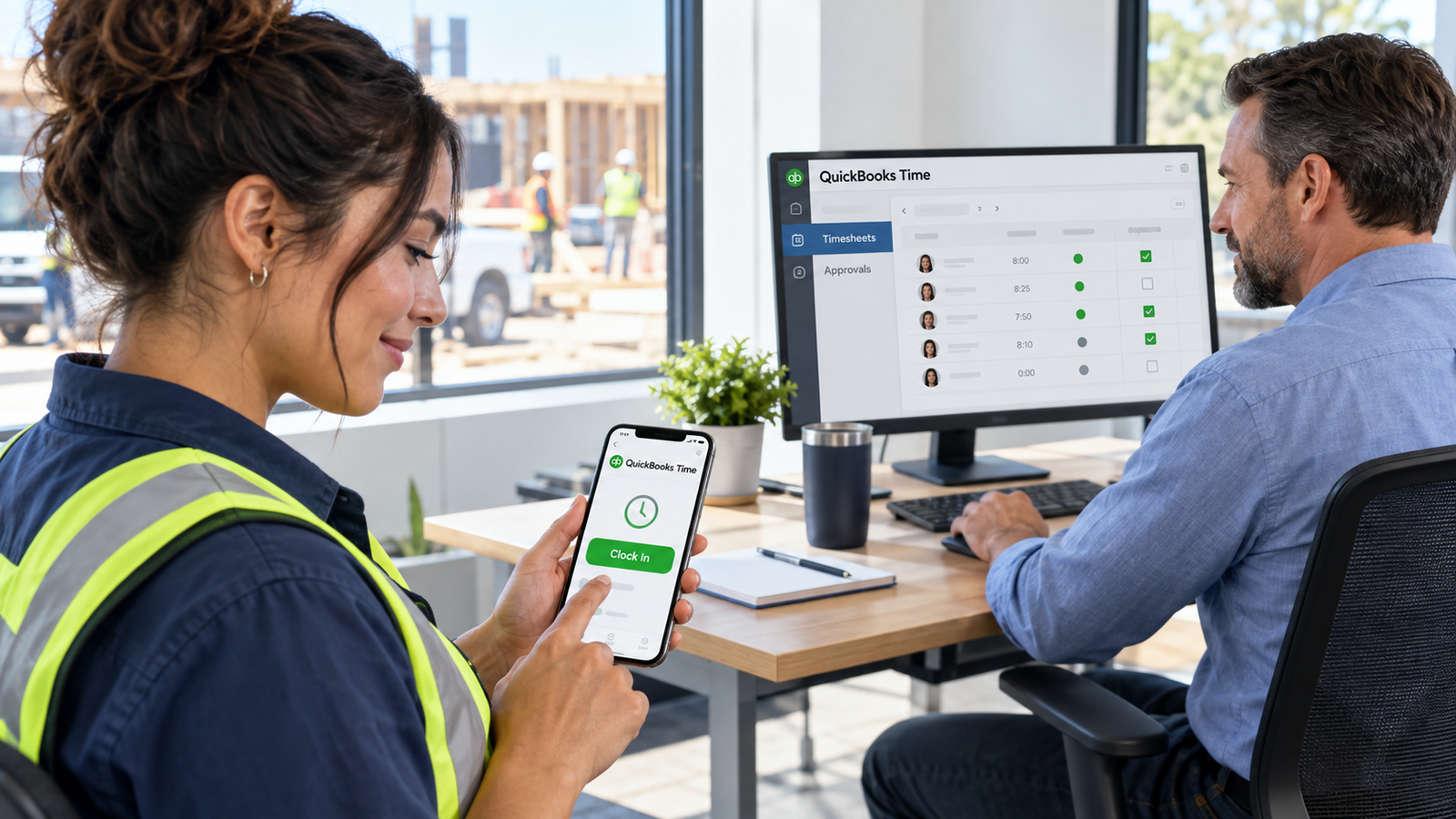
Employees use their QuickBooks Time login to clock in and out, select assigned jobs, and review recorded hours. Depending on their permissions, they can also edit and submit timesheets.
Managers can review team hours, correct time entries, approve timesheets, and run reports. Available features depend on the company’s plan and each person’s access permissions.
What Do You Need Before Logging In to QuickBooks Time?
Before you start the QuickBooks Time login process, make sure you have the following:
- Your Intuit account details: Use the account connected to your employer’s QuickBooks Time team.
- A completed account setup: If you are a new employee, accept your employer’s invitation and follow the setup instructions first.
- Access to your registered phone or email: You may need to receive a verification code when signing in.
- A suitable device and internet connection: Use an updated, supported web browser on your computer or the QuickBooks Workforce app on your phone.
If you have not received an invitation or are unsure which account to use, ask your employer or administrator to check your access.
How to Log In to QuickBooks Time on a Computer
You can complete your QuickBooks Time login through a web browser without installing software on your computer. Follow these steps to sign in.
Open the Official QuickBooks Time Sign-In Page
Visit the official QuickBooks website and choose QuickBooks Time from the sign-in options. You can also use the sign-in link provided by your employer. Check the website address before entering your details.
Enter Your Intuit Account Details
Enter the email address or user ID associated with the Intuit account you connected to your employer’s team. Follow the prompts to enter your password or use another available sign-in method.
If you have more than one Intuit account, use the one you linked when accepting your employer’s invitation.
Complete Verification if Prompted
Intuit may ask you to confirm your identity before giving you access. Follow the instructions on the screen, such as entering a verification code sent to your registered phone or email.
If the code does not arrive, check your spam folder or use another verification option if available.
Access Your QuickBooks Time Dashboard
After signing in, select your company if prompted. Employees can access their time-tracking tools, while managers may also see team timesheets, approvals, and reports.
The options shown depend on your permissions. If your company or expected tools are missing, ask your administrator to check your access.
How Employees Can Log In on a Mobile Device

Employees can use the QuickBooks Workforce app to access QuickBooks Time on their phones. Before your first mobile login, accept your employer’s invitation and complete your account setup.
Download the QuickBooks Workforce App
Open the Apple App Store on your iPhone or Google Play Store on your Android phone. Search for QuickBooks Workforce, confirm that the publisher is Intuit, and install the app.
Sign In with Your Intuit Account
Open the app and select Sign in. Enter the details for the Intuit account connected to your employer’s team, then complete any verification requested.
Use the same account you use for QuickBooks Time login on your computer. If you can view pay information but cannot access time tracking, ask your employer to check your permissions.
Check Required Permissions and Start Tracking Time
Review the permissions requested by the app. Depending on your employer’s settings, you may need to enable location access before clocking in.
Open the time-tracking section and select the correct job or customer if required. Tap Clock In and check that the timer has started. When you finish working, tap Clock Out and review your recorded hours.
How to Set Up Your First QuickBooks Time Login
Before you can start tracking time, you need to connect your Intuit account to your employer’s team. Your employer or administrator will send you an invitation to complete your first QuickBooks Time login setup.
Accept Your Employer’s Invitation
Open the invitation from your employer and select the setup link. Follow the instructions to join your company’s account.
If you cannot find the invitation, check your spam folder and confirm that your employer has your correct contact details. Ask your administrator to resend it if the link has expired.
Create or Connect Your Intuit Account
If you already have an Intuit account, sign in through the invitation to connect it to your employer’s team. Otherwise, select the option to create an account and enter the requested details.
Choose a strong, unique password and complete any required verification. Once setup is finished, use this account to sign in through your computer or the QuickBooks Workforce app.
What Can Employees and Managers Do After Logging In?
After signing in to QuickBooks Time, the tools you see depend on your role and permissions. Employees can record their work hours, while managers can review team records before payroll or billing.
Employees: Track Hours and Review Timesheets
Employees can clock in when they start work, select an assigned job or customer, and clock out when they finish. They can also review their timesheets to check for missing hours or incorrect entries.
If you notice a mistake, edit it if your permissions allow, or ask your manager to make the correction. Submit your timesheet for approval if your company requires it.
Managers: Review Time Entries and Approve Timesheets
Managers with the required permissions can check employee hours, review job assignments, and identify missing or unusual entries. They can resolve errors with employees before approving timesheets.
Approved hours can then be used for payroll or customer billing through a supported, configured integration. Reviewing entries before approval helps reduce mistakes and avoid unnecessary corrections later.
How to Fix Common QuickBooks Time Login Problems
QuickBooks Time login problems can happen because of forgotten credentials, browser issues, or missing account access. Start with the solution that matches your situation.
Forgotten User ID or Password
On the sign-in page, select I forgot my user ID or password, or the recovery option shown. Enter your registered email address or phone number and follow the verification steps to recover access.
If you cannot access your registered phone or email, use Intuit’s account recovery process.
Verification Code Not Received
Wait a few minutes, then check your spam folder or confirm that your phone can receive text messages. Make sure the contact details shown on the screen match yours.
Request a new code if needed and enter only the most recent one. Keep the sign-in tab open while checking your email.
Sign-In Page Not Loading or Repeatedly Redirecting
Try opening the sign-in page in a private or incognito window. If it works there, clear the affected site’s cookies and cached data in your usual browser.
Close and reopen the browser, then try again. If the problem continues, use another updated, supported browser to help identify whether the issue is browser-related.
Trouble Accessing Your Company or Team
If you can sign in but cannot see your company, check that you are using the Intuit account connected through your employer’s invitation.
Ask your administrator to confirm that your invitation was accepted and your team membership is active. Creating another account may make the problem more confusing.
Mobile App Sign-In Problems
If your QuickBooks Workforce login is not working, check your internet connection, update the app, and restart it. Confirm that you are using the correct Intuit account.
Try signing in through a computer browser. If that works, the issue may be limited to the mobile app. If you can open the app but cannot track time, ask your employer to check your time-tracking access.
Tips to Keep Your QuickBooks Time Account Secure
A few simple habits can help protect your QuickBooks Time login and work information:
- Use a strong, unique password: Avoid reusing passwords from other accounts. A password manager can help you create and store one.
- Enable two-step verification: Add an extra sign-in check through your Intuit account’s security settings.
- Keep your login details private: Never share your password or verification codes, even with coworkers.
- Check sign-in links: Use the official website or app. Be careful with unexpected messages asking you to verify your account.
- Sign out on shared computers: Avoid saving your password on devices other people use.
- Keep recovery details updated: Make sure your registered phone number and email address are current.
If you notice unfamiliar account activity, change your password promptly and contact Intuit through its official support channels.
Final Thoughts
Understanding the QuickBooks Time login process helps employees record their hours and managers review timesheets with fewer delays. Use the correct Intuit account, complete your employer’s invitation, and keep your recovery details updated. If you cannot access your team or time-tracking tools, ask your administrator to check your permissions.
For businesses that also use QuickBooks Desktop, QuickBooks hosting can provide remote access to their desktop accounting software. Employees can continue using QuickBooks Time through its web portal or the Workforce app for their daily time-tracking tasks.
Frequently Asked Questions
Can I Use My Existing Intuit Account to Access QuickBooks Time?
Yes. You can connect your existing Intuit account through your employer’s invitation. Having an Intuit account alone does not automatically give you access to your company’s QuickBooks Time team.
Why Does the Mobile App Say QuickBooks Workforce?
The QuickBooks Time mobile app was renamed QuickBooks Workforce. It supports time tracking and can also show pay information when your employer provides access to those features.
Can I Access QuickBooks Time Without an Employer’s Invitation?
As an employee setting up access for the first time, you generally need your employer or administrator to invite you. Once your account is connected, you can sign in directly without using the invitation again.
Do I Need to Download Software to Use QuickBooks Time on a Computer?
No. You can access QuickBooks Time through a supported web browser with an internet connection. You do not need to install QuickBooks Desktop to use it.
Can I Use QuickBooks Time on Multiple Devices?
Yes. You can use the same connected Intuit account to sign in through a computer browser or the QuickBooks Workforce app on your phone. Check your current clock-in status before making changes when switching devices.
Who Should I Contact if I Still Cannot Log In?
Contact your employer or administrator for invitation, team access, or permission problems. For password recovery or verification issues, use Intuit’s official account recovery options or contact QuickBooks Time support through the official website.