 Admin
AdminHow to Remote Access TaxWise Software: 5 Easy Methods Explained
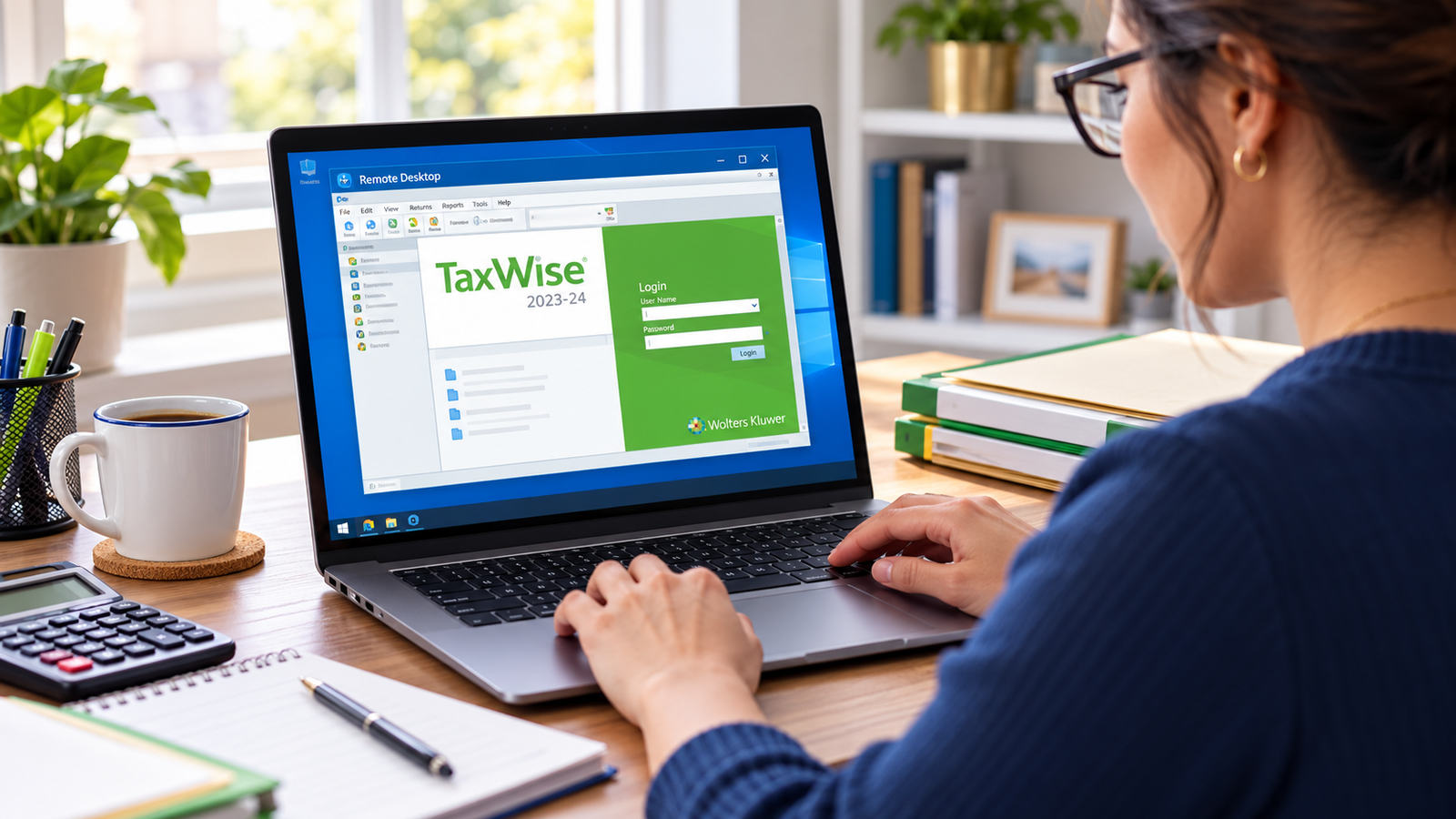
TaxWise Desktop is widely used by tax professionals to prepare and file tax returns. However, when installed on an office computer, accessing the software from another location requires a remote access setup. This can make working from home or managing tax returns while traveling more difficult.
The good news is that you can remote access TaxWise software using several methods, including remote desktop software, Windows Remote Desktop Services (RDS), VPN connections, and cloud hosting. TaxWise Online also offers a browser-based alternative.
In this guide, we will explain five ways to access TaxWise remotely, how each method works, and how to choose the right option for your tax preparation needs.
Can You Access TaxWise Desktop Remotely?
Yes, you can access TaxWise Desktop remotely using a suitable remote access setup. This allows tax professionals to work from home or other locations without being physically present at their office computers.
However, remote access depends on software compatibility, proper configuration, and licensing requirements. Not every remote access method is officially recommended or supported by TaxWise, so checking compatibility before setup is important.
TaxWise Desktop and TaxWise Online are also different. TaxWise Desktop requires installation on a Windows computer, while TaxWise Online is a web-based application that works through a browser.
Choosing the right option depends on your firm’s needs, security requirements, and number of users.
5 Ways to Remote Access TaxWise Software
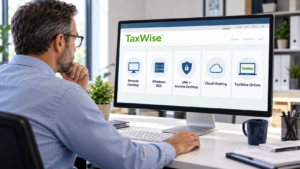
There are several ways to access TaxWise from outside your office. Each method works differently and has its own benefits, costs, and technical requirements. Here are five options to consider based on your working needs.
1. Use Remote Desktop Software
Remote desktop software allows you to control your office computer from another location. Tools like AnyDesk and TeamViewer let you view your computer screen and use installed applications through an internet connection.
To use this method, install a remote access application on your office computer and connect to it from your laptop or another device. Once connected, you can open TaxWise and work on your tax returns as you normally would.
Advantages:
- Access your existing office computer remotely.
- No need to move TaxWise files to another device.
- Suitable for individual tax preparers.
Limitations: Your office computer must remain powered on and connected to the internet. Slow connections may also affect performance. Confirm software compatibility before using this method.
2. Connect Through Windows Remote Desktop Services (RDS)
Windows Remote Desktop Services (RDS) allows users to connect to a Windows server from different locations. Each authorized user can work in a separate remote session.
In an RDS environment, applications run on the server while users access them through their devices.
This approach can help businesses manage remote access for multiple employees. However, it requires proper server configuration, user licenses, and technical management.
Important: TaxWise’s installation guidance does not recommend running the software on Windows terminal servers. Confirm support and compatibility with TaxWise before considering RDS.
3. Use a VPN With a Remote Desktop Connection
A Virtual Private Network (VPN) creates an encrypted connection between your device and a private office network.
For remote access, you can connect to your office network through a VPN and then use a remote desktop application to control the computer where TaxWise is installed.
This allows you to work on your office computer without directly exposing its remote desktop connection to the public internet.
However, a VPN alone does not provide remote desktop access. You still need a separate remote access tool.
TaxWise also advises against operating its software over VPN networks. Avoid opening TaxWise files directly across a VPN without confirming compatibility.
4. Access TaxWise Through Cloud Hosting
Cloud hosting is another option for accessing desktop applications remotely. Instead of depending on an office computer, applications run in a remote cloud environment.
With a compatible hosting setup, authorized users can connect to a cloud desktop through an internet connection and work with their applications and files.
Potential benefits include:
- Access from different locations.
- Less dependence on office computers.
- Centralized application and data management.
- Easier resource upgrades when needed.
However, cloud hosting requires a suitable Windows environment, software licensing, secure access controls, and reliable internet connectivity.
Before choosing a hosting provider, confirm that your TaxWise version and intended cloud configuration are permitted and supported.
5. Use TaxWise Online for Browser-Based Access
TaxWise Online is a web-based tax preparation application offered by Wolters Kluwer. Unlike TaxWise Desktop, it does not require installation on your computer.
You can open a supported web browser, visit the TaxWise Online login page, and sign in with your authorized account.
The software allows tax professionals to prepare and manage returns online, while application updates and return storage are handled through the provider’s systems.
However, TaxWise Online is a separate product, not a remote connection to TaxWise Desktop. Features, data storage, pricing, and workflow options may differ.
This option is worth considering if you prefer browser-based tax preparation without managing a desktop installation.
How to Set Up Remote Access for TaxWise Desktop
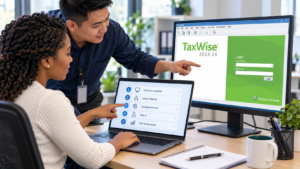
Setting up remote access for TaxWise Desktop starts with choosing a method that works with your licensed software. Follow these steps to access your tax software from another location.
Step 1: Check TaxWise System Requirements and Compatibility
Review the system requirements for your TaxWise version, including Windows compatibility, memory, storage, and internet speed. Check the official installation guidelines before using remote desktops, servers, or cloud environments. Make sure your license supports the planned setup.
Step 2: Choose a Suitable Remote Access Method
Decide whether you need to access one office computer or support multiple users. Remote desktop software may suit individual tax preparers. For server-based or cloud hosting options, confirm compatibility with TaxWise support before proceeding.
Step 3: Configure Secure Remote Access
Install and configure a compatible remote access tool or follow your hosting provider’s setup instructions. Create individual user accounts, set strong passwords, and enable multi-factor authentication. Allow access only to authorized users and avoid exposing remote desktop connections directly to the internet.
Step 4: Sign In and Open TaxWise
Connect to your office computer or supported remote environment using your login credentials. Once connected, open TaxWise Desktop and sign in with your authorized account. Complete any required security verification.
Step 5: Test Software Performance and File Access
Open a test return to check loading speed, file access, and saving functions. Test printing and confirm that your tax files are available. If you experience connection or performance issues, contact your IT team or TaxWise support before working with actual client returns.
TaxWise Remote Access Methods: Quick Comparison
Choosing the right way to access TaxWise remotely depends on your business needs, budget, and number of users. Some methods allow you to connect to an existing office computer, while others provide access through remote servers or cloud environments.
The table below compares five remote access options to help you understand their uses and limitations.
| Method | Best For | Key Consideration |
| Remote Desktop Software | Accessing an office PC | Office computer must stay powered on and connected |
| Windows RDS | Managed remote sessions | TaxWise does not recommend terminal server setups |
| VPN + Remote Desktop | Private network access | VPN alone cannot run TaxWise remotely; verify compatibility |
| Cloud Hosting | Managed remote workspaces | Check TaxWise compatibility, licensing, and hosting costs |
| TaxWise Online | Browser-based tax preparation | Separate product from TaxWise Desktop |
Before choosing a method, check TaxWise’s official compatibility guidelines. Consider security, internet reliability, setup costs, and technical support to find an option that meets your firm’s requirements.
How to Keep TaxWise Remote Access Secure
When accessing TaxWise remotely, protecting sensitive client information is important. Tax returns contain personal and financial details, so businesses should follow proper security practices to prevent unauthorized access and data loss.
Use Strong Passwords and Multi-Factor Authentication
Create strong, unique passwords for your TaxWise and remote access accounts. Enable multi-factor authentication (MFA) wherever available. MFA adds another security step, such as a verification code, to help protect your account even if someone knows your password.
Limit Access to Authorized Users
Allow only trusted employees to access TaxWise and client files. Give each user a separate account and set permissions based on their responsibilities. Remove access when an employee leaves or no longer needs it. Avoid sharing login credentials.
Keep TaxWise Updated and Back Up Tax Data
Install official TaxWise updates and keep your operating system and remote access tools updated. Schedule regular backups of tax returns and related files using a secure storage location. Test your backups occasionally to make sure your data can be restored when needed.
Common TaxWise Remote Access Problems and How to Fix Them
Remote access problems can interrupt tax preparation, especially during busy filing periods. Here are some common issues and simple ways to fix them.
Slow Performance or Connection Issues
Check your internet speed and restart your remote desktop connection. Close unnecessary applications on both devices. Make sure your office computer is powered on and connected to the internet. If performance remains slow, ask your IT team to check the network.
Login and Permission Problems
Confirm that you are using the correct username and password. Check whether your account is active and complete any required security verification. If access is denied, contact your system administrator to review your permissions.
Unable to Open TaxWise or Access Files
Make sure TaxWise is properly installed and updated on the remote computer. Check that your tax files are stored in the correct location and that you have permission to access them. If the problem continues, contact TaxWise support for assistance.
Which TaxWise Remote Access Method Should You Choose?
The best way to access TaxWise remotely depends on your business size, number of users, budget, and technical requirements.
For individual tax preparers, remote desktop software may be a practical option. It allows you to connect to your existing office computer without moving your software or files.
For small tax firms, TaxWise Online may be worth considering if employees need browser-based access from different locations. However, it is a separate product from TaxWise Desktop.
For larger firms with multiple users, cloud hosting or managed remote desktop environments may offer more flexibility. However, you must confirm TaxWise compatibility, licensing, and technical requirements before choosing these options.
Before making a decision, compare setup costs, security features, internet requirements, and available support. Choose a method that meets your daily tax preparation needs.
How to Remote Access TaxWise Software: FAQs
Can I access TaxWise Desktop from home?
Yes, you may be able to access TaxWise Desktop from home using remote desktop software. This allows you to control your office computer over the internet. However, you should confirm that your remote access setup is compatible with TaxWise before using it.
Can I use TaxWise on a laptop remotely?
Yes, you can use a laptop to connect to an office computer where TaxWise Desktop is installed. You need a reliable internet connection, a compatible remote access tool, and permission to access the computer.
Does TaxWise work with a VPN?
A VPN creates a secure connection to your office network, but it cannot run TaxWise remotely by itself. TaxWise’s installation guidance does not recommend operating the software over VPN networks. Check with TaxWise support before choosing this method.
Can multiple users access TaxWise at the same time?
TaxWise supports multi-user workflows in suitable network environments. However, the number of users and available features depend on your software license, installation setup, and user permissions. Confirm compatibility before configuring remote access for multiple employees.
Is TaxWise Online different from TaxWise Desktop?
Yes, TaxWise Online is a browser-based tax preparation application, while TaxWise Desktop requires installation on a Windows computer. Both products have different requirements, data storage methods, and update processes.
Is cloud hosting a secure option for TaxWise?
Cloud hosting can provide a secure remote workspace when properly configured. Look for features such as encrypted connections, multi-factor authentication, regular backups, and controlled user access. Before moving TaxWise to a cloud server, confirm software compatibility, licensing requirements, and available technical support.
Final Thoughts
Remote access can make TaxWise easier to use when working from home or managing tax returns outside the office. Remote desktop software may suit individual tax preparers, while TaxWise Online offers a browser-based alternative. Other options, including cloud hosting, require additional compatibility and licensing checks.
Before choosing a method, review TaxWise’s official requirements, consider your security needs, and test the setup carefully. The right remote access solution should help you work efficiently, protect sensitive client information, and manage tax preparation tasks without unnecessary technical problems.